
Tech
How Does Google Assistant Work? Explained in Simple Terms

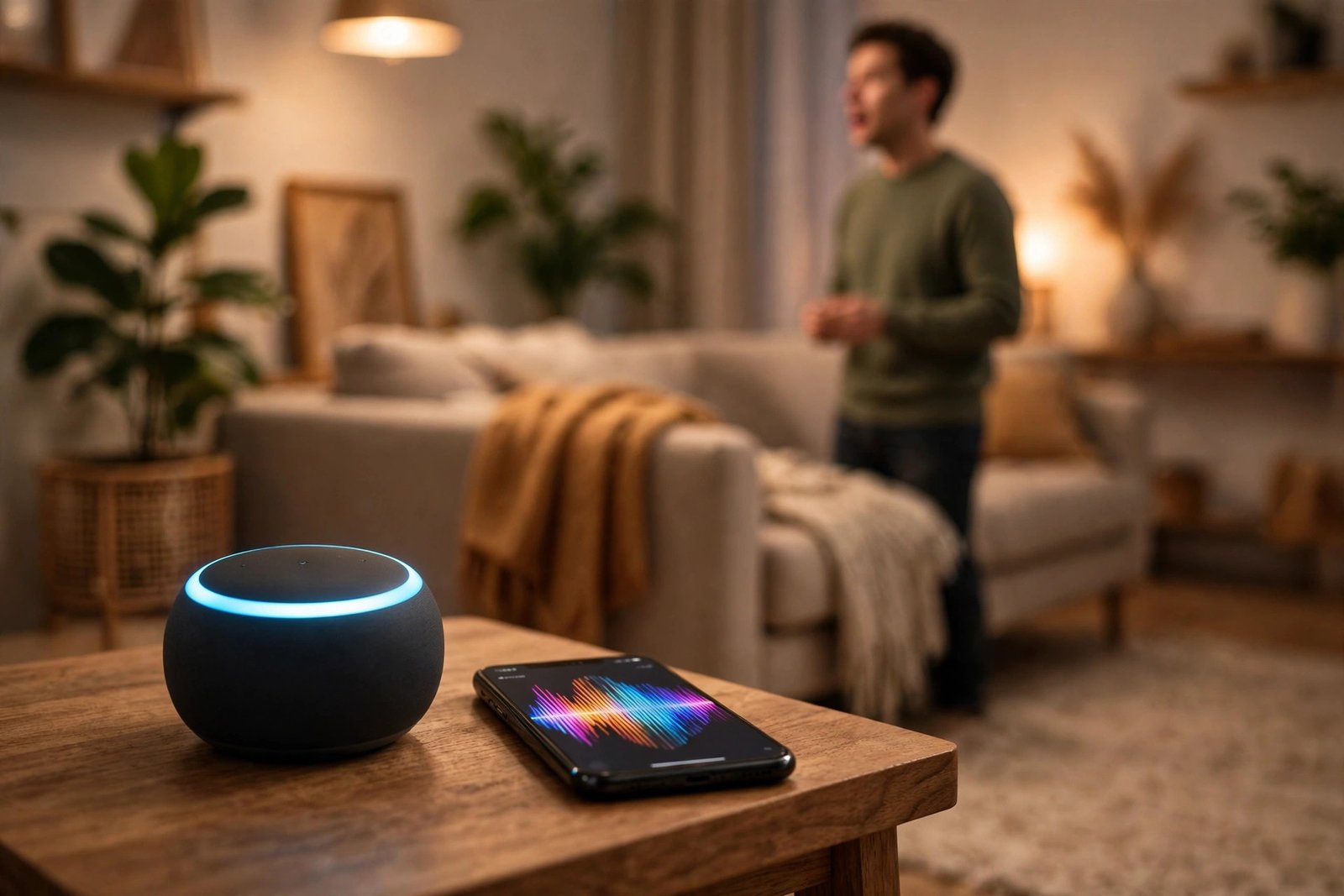
You say, “Hey Google, what’s the weather today?” and a voice answers from your phone or the speaker on your shelf a second later. It feels like magic, but it isn’t. Google Assistant is not a tiny brain living inside your phone or speaker. The device is mostly ears and a mouth — the real thinking happens far away, on Google’s computers, and the answer travels back over the internet.
In short: your device listens for one special phrase, sends what you say next to Google’s servers, the servers figure out what you meant, and then they send back an answer or tell a device what to do. That whole trip usually takes just a second or two. If you want the official word from Google, you can start at Google Assistant’s own pages. The rest of this guide explains each step in plain language.
And if you are still deciding whether a voice-controlled speaker is even for you, our guide on what a smart speaker is covers the basics first.
What You Need for Google Assistant to Work
Google Assistant needs four things, and you probably already have most of them:
- A device with Assistant built in. Most Android phones, Google Nest speakers and displays, Wear OS watches, Android TV and Google TV devices, some cars, and headphones. On an iPhone, Assistant lives inside the Google app.
- A Google account. This holds your settings, your calendar and contacts, and your linked music and smart home services. Assistant uses it to give you personal answers, like what’s on your calendar today.
- Wi-Fi or mobile data. Assistant depends on Google’s servers for almost everything, so without an internet connection it can do very little.
- The Google app or Google Home app. You use these free apps to set up devices, link services, and manage settings. Most setup happens there, not on a website.
Step by Step: What Happens When You Say “Hey Google”
1. The device listens for the wake phrase — and only the wake phrase
Your phone or speaker is always listening, but not in the way people fear. A small, low-power part of the device listens locally for one sound pattern: “Hey Google” or “OK Google.” Nothing is recorded or sent to Google until that phrase is heard. That is why the lights on a Nest speaker only light up after you say the wake phrase.
2. Your request is sent to Google’s servers
Once the wake phrase is detected, the device starts recording what you say next and sends that short audio clip over the internet to Google’s servers. The device itself is too small and simple to do the heavy thinking, so Google’s computers do it instead. When you stop talking, the recording stops too.
3. Your speech is turned into text
In the cloud, a system called speech recognition breaks your voice down into tiny sound units and matches them against words it knows. This is how “set a timer for ten minutes” stops being sound and becomes text a computer can work with. It also explains why background noise, mumbling, or a loud TV can trip Assistant up — if the sounds are unclear, the text will be wrong too.
4. Assistant figures out what you actually mean
Turning speech into text is only half the job. Next, Assistant works out your intent: are you asking a question, giving a command, or asking it to control something? “Turn the living room lights off” is not just words to Assistant — it is an instruction aimed at your smart lights. Context helps here as well. If you just asked about the weather in Chicago and then say “what about tomorrow,” Assistant understands you still mean Chicago.
5. Assistant gets the answer or does the task
Depending on your request, Assistant now does one of three things. For built-in jobs like timers, alarms, and simple math, it handles it directly. For questions like the weather or a general fact, it pulls the answer from Google Search or a built-in service. For music, smart home gadgets, or other apps, it hands the job to the right service — for example, Spotify for music or your smart lights app for the lights. Then it sends the result back to your device.
6. You hear the answer
Finally, the text answer is turned back into speech using a synthesized voice, and your speaker or phone plays it. If you asked it to do something instead — play a song, turn on a lamp, set a timer — that action happens at the same time. From wake phrase to answer, the whole round trip normally takes a second or two.
What Can Google Assistant Do?
Assistant covers a wide range of everyday jobs. The most common ones are:
- Answer questions. Weather, sports scores, news, translations, quick facts, and anything Google Search can answer.
- Manage your day. Set alarms, timers, and reminders, check your calendar, and read your notifications out loud.
- Call and message. Make calls and send texts hands-free, which is especially useful while driving or cooking.
- Play music and videos. Ask for a song, a playlist, or a show, and cast it to your TV or speaker.
- Control your smart home. Turn lights on and off, adjust the thermostat, lock the door, or check a camera — by voice.
- Run routines. A routine is a set of actions that run from one command. Say “Hey Google, good morning” and it can read the weather, tell you your commute, and start the news, all at once.
- Translate on the spot. Interpreter mode on Nest displays can translate a live conversation between two languages.
How Google Assistant Controls Your Smart Home
Assistant can control lights, plugs, thermostats, locks, cameras, and more, but only if those gadgets work with Google Home or the universal Matter standard. You link them in the Google Home app, and from then on a voice command is enough: “Hey Google, set the living room thermostat to 72 degrees.”
Routines take this a step further. A routine is a set of actions that run from one trigger — a phrase, a time of day, or a sensor. A “Good Night” routine, for example, could lock the doors, turn off the lights, and set an alarm for the morning, all from one command. Some Nest devices can also act as a hub for Matter gadgets, so those devices do not each need their own hub.
Google Assistant vs Alexa: The Quick Difference
The two assistants work in almost the same way — wake word, cloud, answer — but they come from different companies and different strengths. Google Assistant is built on Google Search, so it is often stronger at answering open questions and understanding follow-up questions. Alexa, which we explain in our guide on how Alexa works, has a very large library of third-party skills and deep ties to Amazon’s shopping and Echo devices. If you already live in Google’s world — Gmail, Google Calendar, YouTube, Android — Assistant fits in more naturally. If your home runs on Echo speakers, Alexa is the easier choice.
Is Google Assistant Always Listening to You?
This is the question almost everyone asks, and the honest answer is: it is always listening for the wake phrase, but it is not recording everything you say. The wake-phrase check happens on the device itself, and audio is only sent to Google after the wake phrase is heard.
That said, two things are worth knowing. First, Assistant sometimes mishears a similar-sounding phrase as the wake phrase and starts recording by mistake. Second, if the idea still bothers you, Nest speakers and displays have a physical microphone mute switch — slide it and the microphones switch off until you slide it back. On a phone, you can turn off “Hey Google” detection in the settings and only open Assistant by pressing a button.
Your Voice Recordings and Privacy Controls
By default, Google saves the audio and activity Assistant receives, and it says it uses samples to improve the service. If you would rather not keep them, you have real options:
- Review and delete your activity. At myactivity.google.com you can see what Assistant heard and delete items by date — or all of them at once.
- Delete by voice. Say “Hey Google, delete what I just said” or “Hey Google, delete everything I said today.”
- Turn off saving. In your Google account settings, under Web & App Activity and Voice & Audio Activity, you can choose not to save this data going forward.
- Use the mute switch. For times you want no listening at all, the physical mic-off switch on a Nest device is the simplest control there is.
- Set up Voice Match. Voice Match teaches Assistant to recognize your voice, so it can give personal answers only to you and tell family members apart.
Why Google Assistant Sometimes Gets It Wrong
Assistant is good, but it is not a person, and it makes predictable mistakes. It can mishear you when there is background noise, when two people talk at once, or when a word sounds like another word. It can also struggle with strong accents, unusual names, or vague requests — “play that song from yesterday” means nothing without more detail. And because it learns from patterns rather than truly understanding you, it can confidently answer the wrong question. When that happens, rephrasing slowly and clearly usually fixes it.
Does Google Assistant Work Without Internet?
Almost entirely, no. Because the speech recognition and understanding happen in the cloud, most requests need an internet connection. A phone can still do a few basics offline, such as opening an app or turning on the flashlight, but questions, music streaming, and smart home control through the cloud will not work until the connection is back.
What About Gemini? Is Google Assistant Going Away?
Yes, on phones. Google announced in March 2025 that Gemini, its newer AI assistant, would replace the classic Google Assistant on most mobile devices. Through 2026, most Android phones switched over, so saying “Hey Google” on a newer phone now usually brings up Gemini instead of the old Assistant. The change also covers watches, headphones, and cars that connect to your phone.
On home devices it is a different story for now. Nest speakers, Nest displays, and Google TV devices still run Google Assistant while Google rolls out a new Gemini-powered experience for the home. So the “how it works” in this guide still describes what happens on the speakers and displays in your home — the wake phrase, the cloud, the answer — even as the name on your phone changes to Gemini.
Frequently Asked Questions
Do I need a Google account to use Google Assistant?
Yes. A free Google account is required. It holds your settings, calendar, contacts, and linked services, and it is what lets Assistant give you personal answers instead of generic ones.
Can I use Google Assistant on an iPhone?
Yes. Assistant is built into the Google app on iPhone, and you can also add a widget or a Siri shortcut to open it quickly. It cannot replace Siri as the phone’s built-in assistant, but it works well for questions and Google services.
Can I change the wake word?
No. Google Assistant only responds to “Hey Google” or “OK Google.” You cannot set a custom wake word of your own choosing.
Is Google Assistant free to use?
Using Assistant on a device you already own costs nothing extra beyond the device itself and your internet connection. Some linked services, like a music subscription, charge their own fees, but basic Assistant — questions, timers, alarms, and smart home control — is free.
What is the difference between Google Assistant and Gemini?
Google Assistant is the older voice assistant built around voice commands and Google Search. Gemini is Google’s newer AI assistant, which can hold longer conversations, understand more complex requests, and help with writing, planning, and images. On most newer Android phones Gemini has now taken Assistant’s place; on Nest speakers and displays, Assistant still runs for now.
Can Google Assistant tell family members apart?
Yes, with Voice Match. Each person trains Assistant to recognize their voice, and then it can give each person their own calendar, music, and reminders. You set it up in the Google Home app under Voice Match.
The Bottom Line
Google Assistant works by splitting the job in two: your phone or speaker handles the simple part — listening for “Hey Google” and playing back answers — while Google’s servers do the hard part of turning your voice into text, working out what you meant, and fetching the answer. Routines and smart home links extend what it can do, and controls like the mute switch and activity deletion let you decide how much it keeps. On phones, Gemini is now taking over the same job with a newer AI brain, but on the speakers and displays around your home, the Assistant you already know is still doing the work.




Who Owns the Jacksonville Jaguars? Meet Shad Khan

How Does Google Assistant Work? Explained in Simple Terms

NASA SLS Rocket Punched a Hole in Earth’s Upper Atmosphere — and Briefly Threw Off GPS

Empower Your SEO and Design with Seotoolsgroupbuy.us’ Designer Plan

Twstalker Twitter Web Viewer: Guide to Anonymous Twitter Browsing
