
Tech
What Is an Authenticator App? Explained in Simple Terms

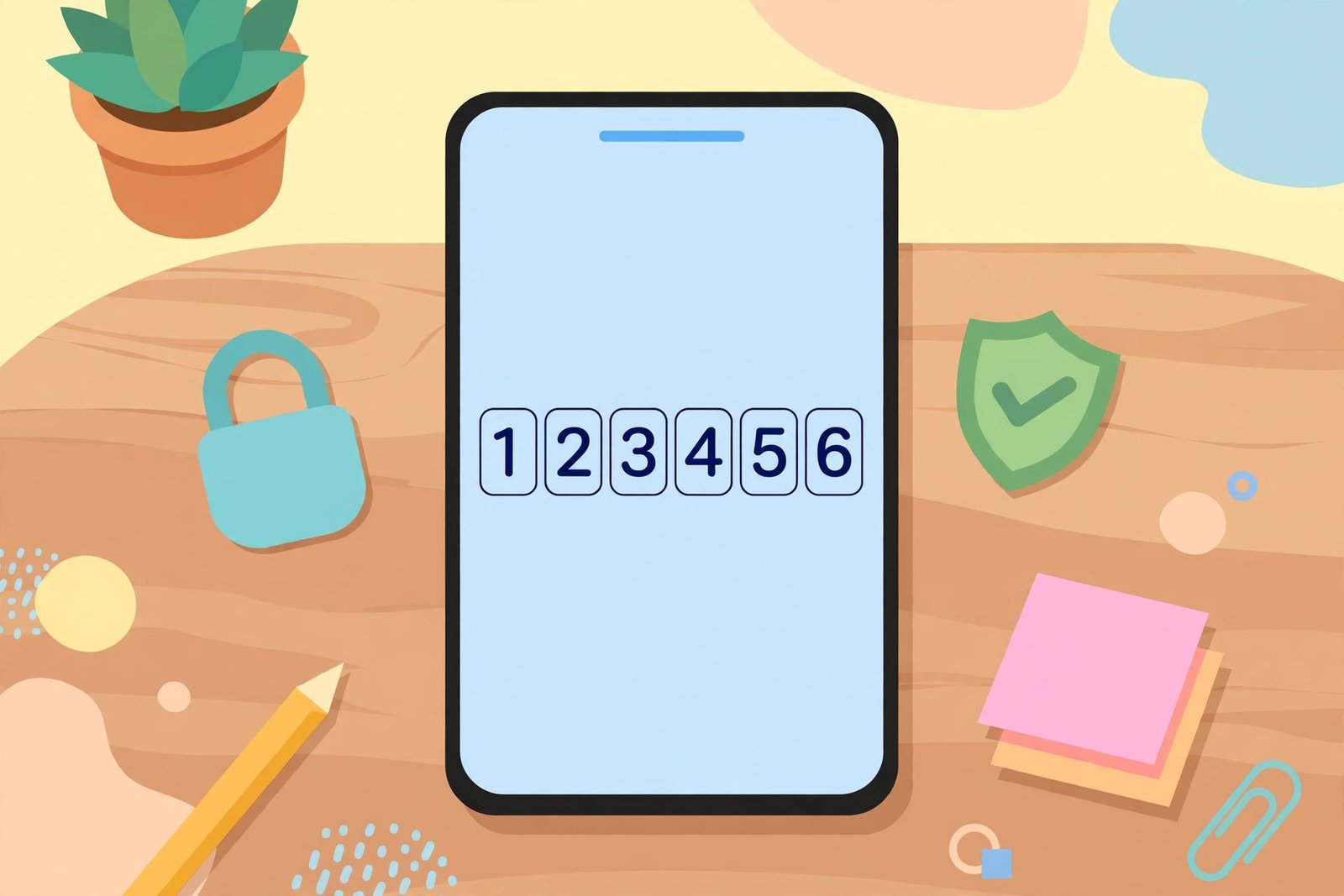
You have probably seen it when turning on extra security for your email or bank account: a prompt asking you to “use an authenticator app.” It sounds technical, but the idea is simple. An authenticator app is a small app on your phone that creates a short login code you type in next to your password.
That extra code is the whole point. Even if someone steals your password, they still cannot get into your account without the code on your phone. Here is how it all works, in plain language.
What Is an Authenticator App?
An authenticator app is a free app that generates temporary login codes for your online accounts. Each code is usually six digits long, and it changes every 30 seconds. You use it as a second step after entering your password — a method known as two-factor authentication, or 2FA.
Popular examples include Google Authenticator, Microsoft Authenticator, Authy, and 2FAS. They all do the same basic job, and most of them are free. One app can hold codes for many different accounts at once: your email, your bank, your social media, and more.
How Does an Authenticator App Work?
The process has two parts: setting it up, and everyday use.
Setting it up. When you turn on two-factor authentication for an account, the website shows you a QR code — one of those square barcodes — or a long secret key made of letters and numbers. You open your authenticator app, scan the QR code (or type in the key), and from that moment the app and the website share the same secret.
Logging in. Each time you sign in, you enter your username and password as usual, and then the site asks for a code. You open the authenticator app, find the account, and type in the six-digit code it is showing right now.
Here is the clever part: the app does not need the internet to make codes. It combines the shared secret with the current time to create each code, and the website runs the same calculation on its end. If the two codes match, you are in. That is why the code changes every 30 seconds — an old code quickly becomes useless to anyone who saw it.
Why Is It Safer Than a Text Message Code?
Many sites also offer to text you a code. That is better than no second step at all, but it has a weakness: text messages can be intercepted, and scammers can sometimes convince a phone company to move your number to their SIM card — a trick called SIM swapping. Once they control your number, your texted codes go to them.
An authenticator app avoids that problem because its codes are created on your phone and never travel over the phone network. Nothing is sent anywhere, so there is nothing to intercept. That is also why the app still works when you have no signal or Wi-Fi.
Popular Authenticator Apps
Google Authenticator is the original and simplest option. It works with almost any website, and it now offers an optional cloud backup of your codes to your Google account.
Microsoft Authenticator works the same way, and it can also approve sign-ins with a single tap for Microsoft accounts instead of making you type a code.
Authy is popular for its encrypted cloud backup and syncing across several devices, which makes moving to a new phone easier.
2FAS is an open-source option with backup features, and a good pick if you like knowing exactly what the app does with your data.
You do not need more than one of these. Pick the one you find easiest, and use it for every account that offers the option.
How to Set Up an Authenticator App
- Download an authenticator app from your phone’s app store.
- Go to the security settings of the account you want to protect, and look for “two-factor authentication” or “2-step verification.”
- Choose “authenticator app” as your second step.
- Scan the QR code shown on screen with the app, or type in the secret key by hand.
- Enter the six-digit code the app shows to confirm the setup worked.
- Save the backup codes the site gives you somewhere safe — see below.
What Happens If You Lose Your Phone?
This is the question everyone asks, and it is worth sorting out before you need it. If your codes live only on one phone and the phone is gone, you can get locked out. Two habits prevent that.
First, save the backup codes. Most sites give you a set of one-time recovery codes when you set up 2FA. Print them or store them somewhere safe — not on the same phone. Each one lets you sign in once without the app.
Second, consider an app with backup. Some authenticator apps can back up your accounts to the cloud in encrypted form, so you can restore them on a new phone. If your app does not offer that, move your accounts to the new phone while you still have the old one: set the app up again on the new device before you wipe or hand in the old one.
If you are already locked out, use the site’s account recovery process. It usually takes a few extra steps to prove who you are — which is exactly the point.
Authenticator App vs Passkey
You may also have heard of passkeys. In short, a passkey replaces your password entirely, while an authenticator app adds a second step on top of a password. Both make accounts much harder to break into, and passkeys are slowly replacing passwords. But authenticator apps work on almost every site today, so they are still the easiest security upgrade for most people.
Common Problems and Quick Fixes
If your codes keep getting rejected, check the clock on your phone first. Because the codes are based on the current time, a clock that is even a few minutes off will produce the wrong codes. Setting your phone to update its time automatically usually fixes this.
Also make sure you are reading the code for the right account — it is easy to mix them up when one app holds several. And if the code on screen is about to run out, just wait a few seconds for a fresh one. If you set up the same account twice, delete the older entry, since it may show outdated codes.
Frequently Asked Questions
Do authenticator apps need the internet?
No. The codes are generated on your phone, so they work offline. You only need a connection for the first setup.
Are authenticator apps free?
The popular ones are free, with no subscription needed for the basic job of generating codes.
Can one app hold codes for many accounts?
Yes. You can add as many accounts as you like, and each one gets its own code in the same app.
Is an authenticator app safer than just a password?
Yes, by a wide margin. A password alone can be guessed, phished, or leaked in a data breach. With an authenticator app, a stolen password on its own is not enough to get in.
Should I still use a strong password?
Yes. Two-factor authentication adds a second lock; it does not replace the first one. If you are worried your password may already be out there, check whether it has been leaked and change it.
Setting up an authenticator app takes about five minutes per account, and after that it becomes second nature: password, open the app, type the code, done. It is the single simplest step most people can take to protect their online accounts.








Ryan Garcia Explained: The WBC Welterweight Champion Linked to a Floyd Mayweather Fight

What Is an Authenticator App? Explained in Simple Terms

How to Check If Your Password Has Been Leaked (Free, in 5 Minutes)

Empower Your SEO and Design with Seotoolsgroupbuy.us’ Designer Plan

Twstalker Twitter Web Viewer: Guide to Anonymous Twitter Browsing
