
Tech
What Is a Passkey? Explained in Simple Terms

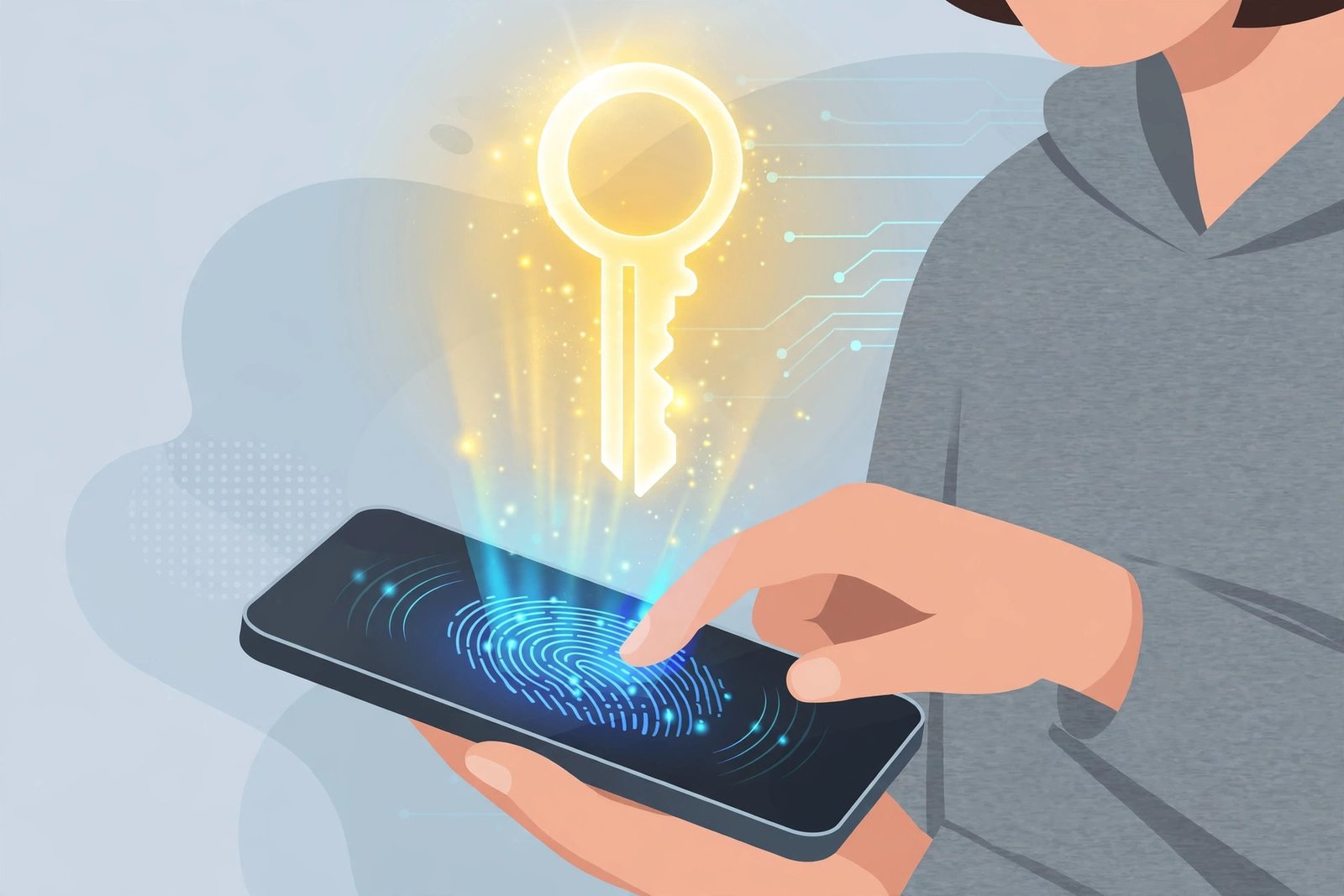
You have probably seen a button that says “Sign in with a passkey” and wondered what it actually means. Is it a new kind of password? Do you have to remember something else? The short answer is no. A passkey is meant to replace passwords, not add one more thing to remember.
In plain terms, a passkey is a way to sign in to a website or app using the same thing you use to unlock your phone: your fingerprint, your face, or your PIN. No password to type, no code to copy from another app, and nothing to forget.
What Is a Passkey?
A passkey is a digital sign-in credential made for one specific account on one specific website or app. When you create a passkey for your email, for example, it only works for that email account. It cannot be used to sign in anywhere else.
Passkeys are built on open standards developed by the FIDO Alliance and the World Wide Web Consortium (W3C). Apple, Google, and Microsoft all support them, which is why you now see the option on phones, computers, and browsers from all three companies.
Think of it this way. A password is a secret you have to remember and share with every site you join. A passkey is more like a key that lives on your device. The site never gets the key itself. It only gets proof that you have it.
How Does a Passkey Work?
It sounds technical, but the steps are simple. When you create a passkey, your device makes a matching pair of keys:
- A private key that stays locked on your device. It never leaves your phone or computer, and it is never sent to the website.
- A public key that goes to the website. On its own, this key is useless to a thief. It only works together with the private key on your device.
When you sign in, the website sends your device a small challenge. Your device answers it using the private key, but only after you unlock it with your fingerprint, face, or PIN. The website checks the answer against the public key it holds. If they match, you are in.
That is the whole trick. Your fingerprint or face is never sent to the website either. It only unlocks the key on your own device, just like it unlocks your phone screen.
Passkey vs Password: What Is the Difference?
Passwords have two big weaknesses. People reuse them across sites, and they can be tricked out of you. A fake login page that looks real can steal a password in seconds. That is called phishing, and it is one of the most common ways accounts get taken over.
Passkeys fix both problems at once:
- Nothing to reuse. Each passkey is unique to one site, so a leak at one company does not put your other accounts at risk.
- Nothing to steal by phishing. A passkey is tied to the real website address it was made for. It will not work on a fake lookalike site, even if you are tricked into visiting one.
- Nothing to remember. You do not pick it, spell it, or write it down. Your device handles it.
That does not mean passwords disappear overnight. Many sites still use them, and most will keep your old password as a backup even after you add a passkey. Passkeys are a replacement you switch to site by site, as each site adds support.
How to Create a Passkey
You do not create a passkey in your phone settings out of nowhere. You create it on the website or in the app itself, when that site offers the option. The wording varies, but the steps are usually the same:
- Sign in to the site the normal way, with your password.
- Open your account or security settings and look for “Passkey,” “Passwordless sign-in,” or “Create a passkey.”
- Tap or click to create it. Your device will ask you to confirm with your fingerprint, face, or PIN.
- Done. Next time you sign in, the site will offer the passkey instead of asking for a password.
On an iPhone or Mac, passkeys are stored in iCloud Keychain and show up in the Passwords app. On Android and in Chrome, they are stored in Google Password Manager. Many dedicated password managers can store passkeys too. If you want a deeper look at the tools that hold them, see our guide to the best password managers for families.
Synced Passkeys vs Device-Bound Passkeys
There are two kinds, and the difference matters if you ever lose a device.
Synced passkeys are the common kind. The private key is encrypted and synced through your account, such as iCloud Keychain or Google Password Manager, so the passkey is available on your other devices signed in to the same account. Lose your phone, and you can still sign in from your tablet or laptop.
Device-bound passkeys stay on one device only, such as a hardware security key or a work computer set up that way. They never sync anywhere. That makes them very secure, but if you lose that device and have no other passkey registered for the account, you will need the account’s recovery option to get back in.
For most people, synced passkeys are the practical choice. Just make sure your Apple Account or Google Account itself is protected with a strong password and two-factor authentication, because that account now guards your passkeys.
What Happens If You Lose Your Phone?
This is the question almost everyone asks first, and it is a fair one.
If your passkeys are synced, losing one phone is an inconvenience, not a lockout. Sign in on another device with the same Apple or Google account, and your passkeys are there. You should still remove the lost device from your account and change your account password as a precaution.
If a passkey was only on the lost device, you fall back to the site’s normal recovery process, the same way you would if you forgot a password. That is why it is smart to register a passkey on a second device, or keep another sign-in method turned on, for accounts that really matter, like your email and bank.
One more tip: before you rely on passkeys for an important account, check that you can still get into your Apple or Google account without that one phone. A recovery phone number or recovery email set up in advance saves a lot of stress later.
Are Passkeys Safe?
Yes, for everyday use they are safer than passwords in the ways that matter most. There is no password to guess, reuse, or leak in a data breach, and a passkey cannot be phished away on a fake site because it only works on the real one.
They are not magic, though. A passkey is only as safe as the device holding it. If someone can unlock your phone, they can use your passkeys, just as they could open your apps. Keep a screen lock on, keep your software updated, and do not hand an unlocked phone to someone you do not trust.
Also, passkeys do not replace good habits entirely. For sites that do not support passkeys yet, you still need strong, unique passwords, and for your most important accounts, turning on two-factor authentication is still worth it. If you are unsure about saving logins in your browser at all, read is it safe to save passwords in Chrome first.
Should You Switch to Passkeys?
If a site you use offers passkeys, it is worth trying. Start with one low-risk account, like a shopping or streaming site, and see how it feels. The sign-in is usually faster than typing a password, and you will quickly get used to just using your fingerprint or face.
Then move on to your email account, because email is often the key to resetting everything else. Keep your password manager or your old password as a backup until you are comfortable, and make sure you have a recovery option set up. That way you get the security of passkeys without the fear of locking yourself out.
Passwords have been around for decades, and they will not vanish in a year. But passkeys are the first real replacement that is both safer and easier for normal people to use. Once you have signed in with one, typing a long password starts to feel like the old way of doing things.
Frequently Asked Questions
Do passkeys replace passwords completely?
Not yet. They replace the password on each site that supports them, but many sites still ask for a password, and most keep it as a backup. Think of it as a gradual switch, not an overnight change.
Is a passkey the same as two-factor authentication?
No. Two-factor authentication adds a second check on top of a password, like a code from an app. A passkey replaces the password itself. You can still use extra security on top of a passkey where a site offers it.
Can I use a passkey on a different device?
If your passkey is synced through iCloud Keychain or Google Password Manager, yes, it works on your other devices signed in to the same account. A device-bound passkey only works on the device it was created on.
What if a website does not offer passkeys?
Just keep using a strong, unique password for that site, ideally saved in a password manager. Check back later, since more sites are adding passkey support all the time.
Do I need a special app for passkeys?
No. Passkeys work through your phone, computer, or browser’s built-in support, or through a password manager you already use. There is nothing extra to install unless you want a dedicated manager to hold them.



How to Check If Your Password Has Been Leaked (Free, in 5 Minutes)

Who Is Sonny Styles? The Commanders Rookie Turning Heads, Explained

Justin Hartley Tracker Season 4 Episode 5: Jensen Ackles Returns, Explained

Empower Your SEO and Design with Seotoolsgroupbuy.us’ Designer Plan

Twstalker Twitter Web Viewer: Guide to Anonymous Twitter Browsing
