
Tech
Can You Screen Mirror Without WiFi? Yes — Here’s How

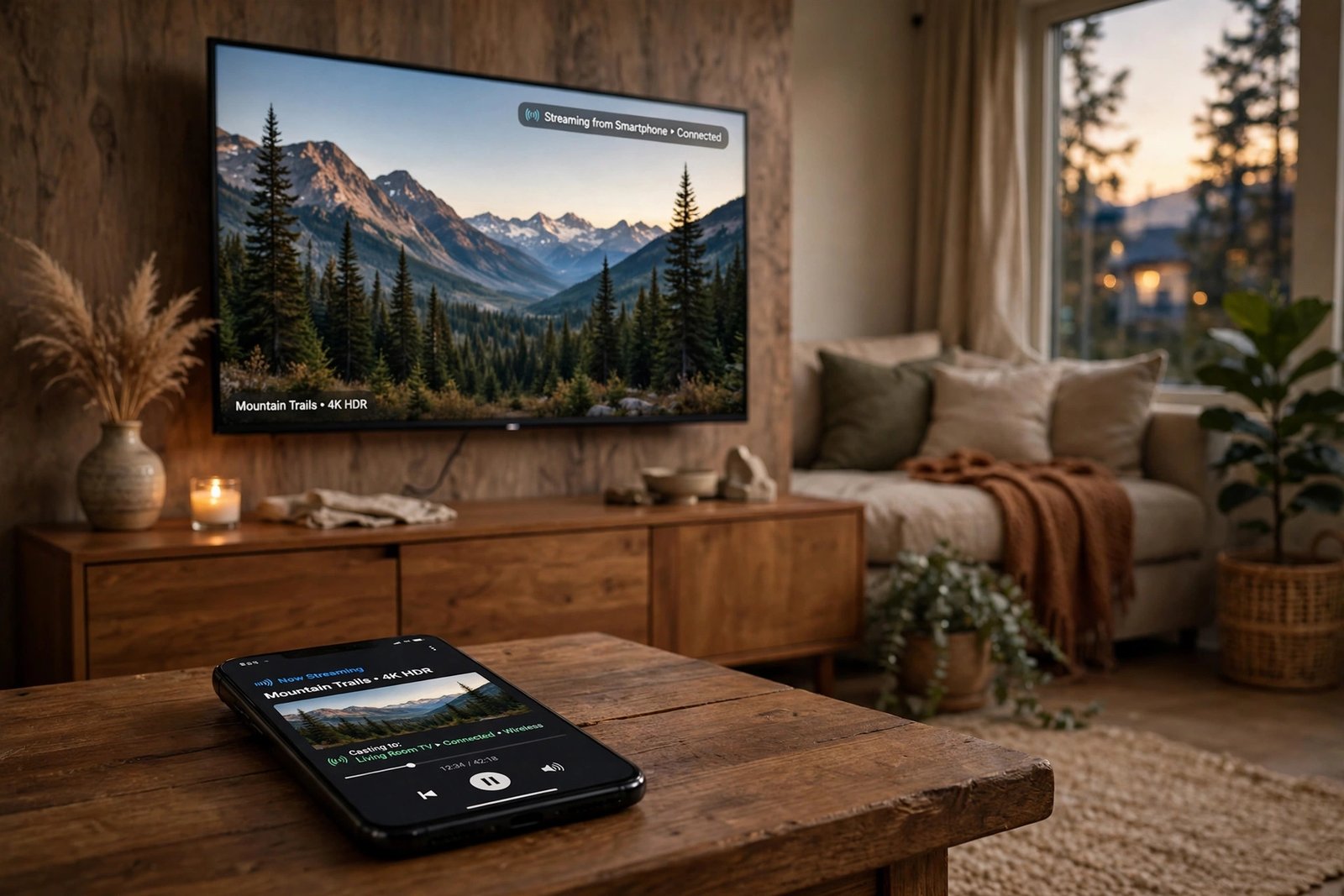
If your WiFi is down, you’re traveling, or you just don’t want to share a network password, you might wonder whether screen mirroring is even possible. The good news: it is. A WiFi network makes mirroring easier, but several methods work without one at all.
The Quick Answer
Yes, you can screen mirror without WiFi. Use Miracast (built into most Android phones and Windows PCs) for a direct wireless connection, Apple Peer-to-Peer AirPlay if you have an Apple TV, or plug in with an HDMI or USB-C adapter for a cable connection. Each method creates its own direct link between your phone and the TV, so no router is needed.
How Screen Mirroring Works Without WiFi
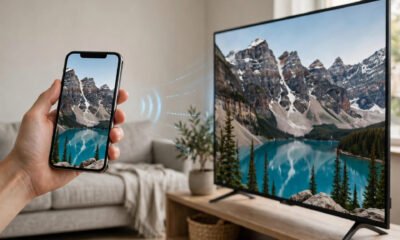
Normally, screen mirroring sends your phone’s screen through your home WiFi network to your TV. But the WiFi router is just a middleman. Several technologies let your phone and TV talk directly to each other, skipping the router entirely.
Method 1: Miracast (Android and Windows)
Miracast uses WiFi Direct, which creates a peer-to-peer connection between two devices. Think of it as a tiny private wireless network that exists only between your phone and your TV.
Most Android phones and many smart TVs (Samsung, LG, Sony) have Miracast built in. On Android, look for “Smart View,” “Cast,” or “Screen Mirroring” in Settings, usually under Connected Devices. Your TV just needs to have screen mirroring enabled. No WiFi network, no internet, no router required.
If your TV doesn’t support Miracast, a cheap Miracast dongle (like the Microsoft Wireless Display Adapter) plugs into an HDMI port and adds it.
Method 2: Peer-to-Peer AirPlay (iPhone and Apple TV)
Apple built a WiFi-free mode into AirPlay for exactly this situation. With Peer-to-Peer AirPlay, your iPhone finds the Apple TV over Bluetooth, then opens a temporary direct wireless link to it.
Requirements: an Apple TV (3rd generation Rev A / model A1469 or newer) and an iPhone 5s or newer running iOS 8 or later. WiFi and Bluetooth must be turned ON on both devices, but they do not need to be connected to any network. Open Control Center, tap Screen Mirroring, pick your Apple TV, and enter the code if asked. Our full iPhone screen mirroring guide covers the standard WiFi method in more detail.
Note: this trick only works with an actual Apple TV. AirPlay 2 on Samsung, LG, Vizio, or Sony smart TVs requires both devices on the same WiFi network.
Method 3: HDMI or USB-C Cable
The simplest and most reliable option is a wire. An HDMI cable plus the right adapter mirrors your phone’s screen with zero lag and no network at all:
- iPhone with Lightning port: Lightning Digital AV Adapter + HDMI cable
- iPhone with USB-C: USB-C to HDMI cable or adapter
- Android: USB-C to HDMI cable (works on most Samsung, Pixel, and OnePlus phones; check that your phone supports DisplayPort over USB-C)
This is also the best choice for gaming or presentations, since wired mirroring has almost no delay.
What Won’t Work Without WiFi
One thing to keep in mind: mirroring your screen without WiFi shows whatever is on your phone, but it doesn’t give you internet. If you open Netflix or YouTube, the video still needs a data connection, so it will buffer or fail on a phone with no signal. One exception: Netflix blocks video output over AirPlay anyway, even with WiFi.
Also, a Chromecast is not a good WiFi-free option. It needs a WiFi network for its initial setup and for most casting, so pick Miracast, peer-to-peer AirPlay, or a cable instead.
Follow-Up Questions
Does screen mirroring without WiFi use mobile data?
Mirroring itself uses no data at all — it just displays your screen on the TV. Data is only used if you’re streaming something online (like a video), which needs your phone’s own mobile data or another internet connection.
Can you mirror to a hotel TV without WiFi?
Yes, with a cable. Most hotel TVs have HDMI ports you can reach, so a phone-to-HDMI adapter is the most dependable option. Wireless methods can be hit or miss in hotels because captive-portal WiFi interferes with device discovery, and going direct avoids that mess entirely.
Why won’t my phone find my TV for mirroring?
The most common cause is that both devices are on different networks (for example, your phone on 5 GHz and your TV on 2.4 GHz). For wireless methods, make sure both are on the same network, or skip networks entirely with Miracast direct connect. Also check that Bluetooth and WiFi are turned on for peer-to-peer AirPlay, and that both devices are updated.




Rays vs. Brewers World Series 2026: Schedule, Dates & How to Watch
Avengers Doomsday: Release Date, Cast & the World Series Preview
Education Department Drops PSLF Challenge: What It Means for Borrowers

Empower Your SEO and Design with Seotoolsgroupbuy.us’ Designer Plan

Sejda PDF Editor Review: Features, Pricing & Best Alternatives
