
Tech
How to Screen Mirror iPhone to TV: The Complete Guide

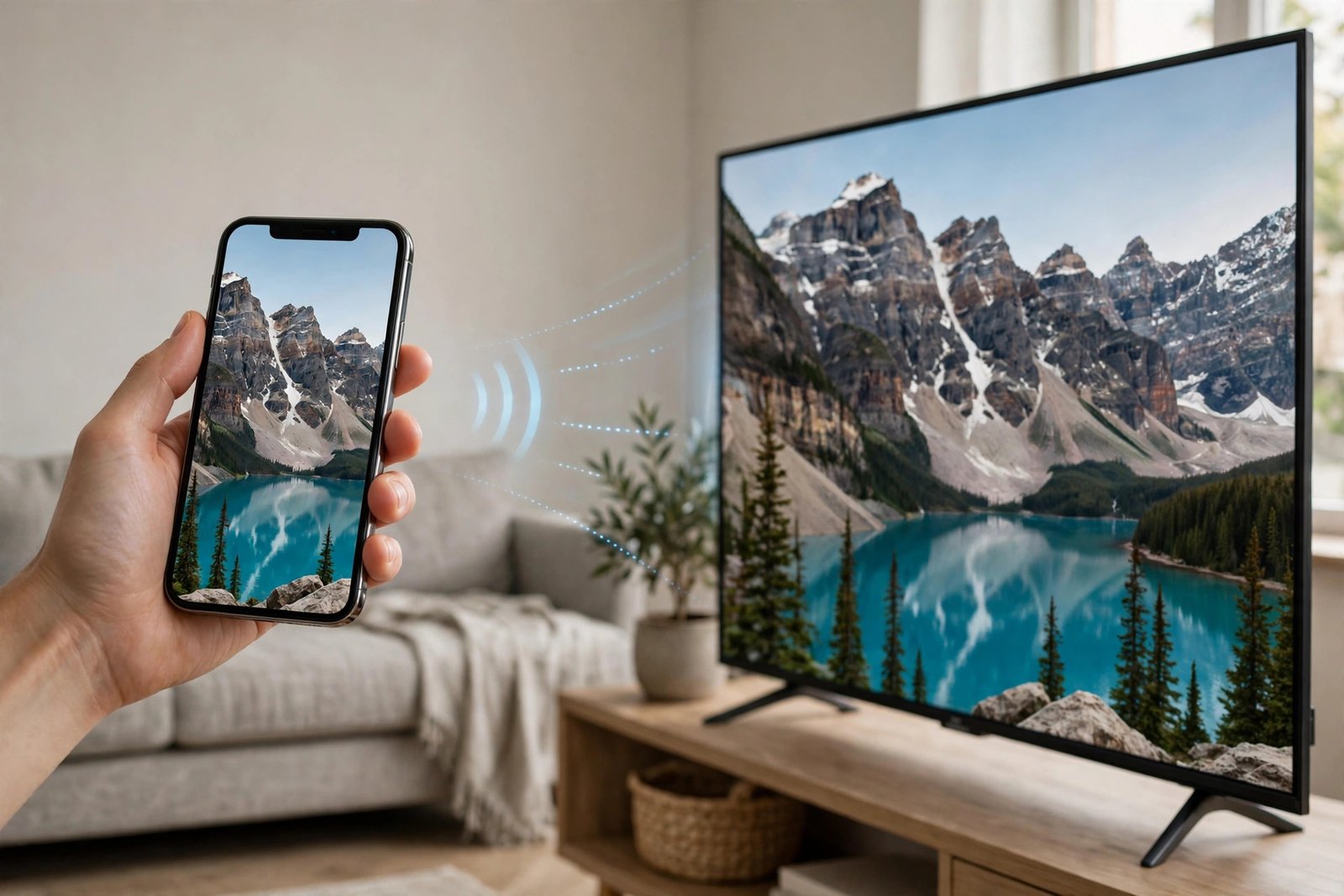
Want to watch videos, share photos, or show an app from your iPhone on a bigger screen? Screen mirroring puts your entire iPhone display on your TV wirelessly. The quick answer: connect both devices to the same Wi-Fi network, open Control Center on your iPhone, tap Screen Mirroring, and select your TV. Below are the exact steps for every TV type, plus what to do when it doesn’t work. (Apple’s official instructions are here: Use AirPlay to mirror the screen of your iPhone.)
What you need before you start
Mirroring only takes a minute, but a quick check first saves a lot of frustration:
- Your iPhone and your TV must be on the same Wi-Fi network. This is the number one reason mirroring fails.
- Your TV must support AirPlay (most Samsung, LG, Sony, and Vizio smart TVs made since 2018 do), or you need an Apple TV box plugged into the TV.
- Your iPhone should be running a recent version of iOS. If you are not sure, go to Settings > General > Software Update.
If your TV has no AirPlay option anywhere in its settings, it does not support AirPlay. In that case, skip to Method 3 below for a wired connection.
Method 1: Mirror iPhone to TV with AirPlay (wireless)
This is the easiest way, and it works with any AirPlay-compatible smart TV or an Apple TV.
- Turn on your TV and make sure it is on the same Wi-Fi network as your iPhone.
- On your iPhone, open Control Center: swipe down from the top-right corner of the screen. If your iPhone has a Home button, swipe up from the bottom edge instead.
- Tap the Screen Mirroring button (it looks like two overlapping rectangles).
- Pick your TV from the list of devices.
- If a code appears on your TV screen, type it into your iPhone. You usually only have to do this the first time.
Your whole iPhone screen now shows on the TV. Turn your phone sideways when watching photos or videos so they fill the screen. One thing to know: everything on your screen is mirrored, including incoming texts and notifications. If you are presenting to others, turn on Do Not Disturb first.
Method 2: Stream a video without mirroring your whole screen
Sometimes you don’t want your entire phone on the TV — you just want a movie to play. That’s not mirroring, it’s streaming, and it’s better for watching videos:
- Open the video in an app like YouTube, Netflix, or Photos.
- Tap the AirPlay icon (a rectangle with a small triangle under it).
- Select your TV.
The video fills the whole TV screen, and you can keep using your phone for other things while it plays. To stop, tap the AirPlay icon again and select your iPhone.
Method 3: Connect with a cable (no Wi-Fi needed)
If your TV doesn’t support AirPlay and you don’t have an Apple TV, a wired adapter still gets the job done. No Wi-Fi required.
- Get a Lightning-to-HDMI or USB-C-to-HDMI adapter (depending on your iPhone model) and an HDMI cable.
- Plug the adapter into your iPhone and the HDMI cable into a port on your TV.
- Switch your TV to the matching HDMI input.
- Your iPhone screen appears on the TV automatically.
How to stop screen mirroring
- Open Control Center on your iPhone again.
- Tap Screen Mirroring.
- Tap Stop Mirroring.
If you are using an Apple TV, pressing the Menu or Back button on the remote also ends the session.
Screen mirroring not working? Try these fixes
When mirroring refuses to connect, work through these in order. One of them fixes the problem almost every time:
- Check the Wi-Fi. Both devices must be on the same network, not just the same house. A phone on the 5 GHz band and a TV on the 2.4 GHz guest network won’t see each other.
- Make sure AirPlay is turned on at the TV. Many TVs ship with AirPlay disabled. Look in the TV settings for “Apple AirPlay” or “AirPlay & HomeKit” and switch it on.
- Restart everything. Turn your iPhone, TV, and Wi-Fi router off and back on. This clears the temporary glitches that block device discovery.
- Update your iPhone. Go to Settings > General > Software Update and install anything pending.
- Turn off VPN on your iPhone. A VPN can block the local network discovery that AirPlay uses. Disable it while you mirror.
- Move closer to the router. Weak Wi-Fi causes lag, choppy video, and dropouts during mirroring.
- Check for app blocks. Some streaming apps block mirroring because of content licensing. If you hear sound but see a black screen, that’s the app, not your setup — stream the content from a different app instead.
Frequently asked questions
Does screen mirroring need Wi-Fi?
Wireless mirroring needs both devices on the same Wi-Fi network. The wired adapter method in Method 3 works without any Wi-Fi at all.
Does screen mirroring work with any TV?
It works with TVs that have AirPlay built in, or with any TV that has an Apple TV box connected. For older TVs with neither, use an HDMI adapter.
Why does my screen mirroring keep lagging?
Lag almost always means weak Wi-Fi. Move closer to your router, close other apps on your iPhone, or use a wired adapter for a perfectly smooth picture.
Is there a delay between the phone and the TV?
Yes, a tiny one — usually a fraction of a second over Wi-Fi. It’s fine for videos and photos but can be annoying for fast games. For gaming, the wired adapter is better.

How to Screen Mirror iPhone to TV: The Complete Guide

What Is the Shamonda Virus? France’s First Human Case Explained

Simone Biles Sold Her Houston-Area Home: Price, Details & Why She Moved

Empower Your SEO and Design with Seotoolsgroupbuy.us’ Designer Plan

Sejda PDF Editor Review: Features, Pricing & Best Alternatives
