
Tech
How Does Screen Mirroring Work? Explained in Simple Terms

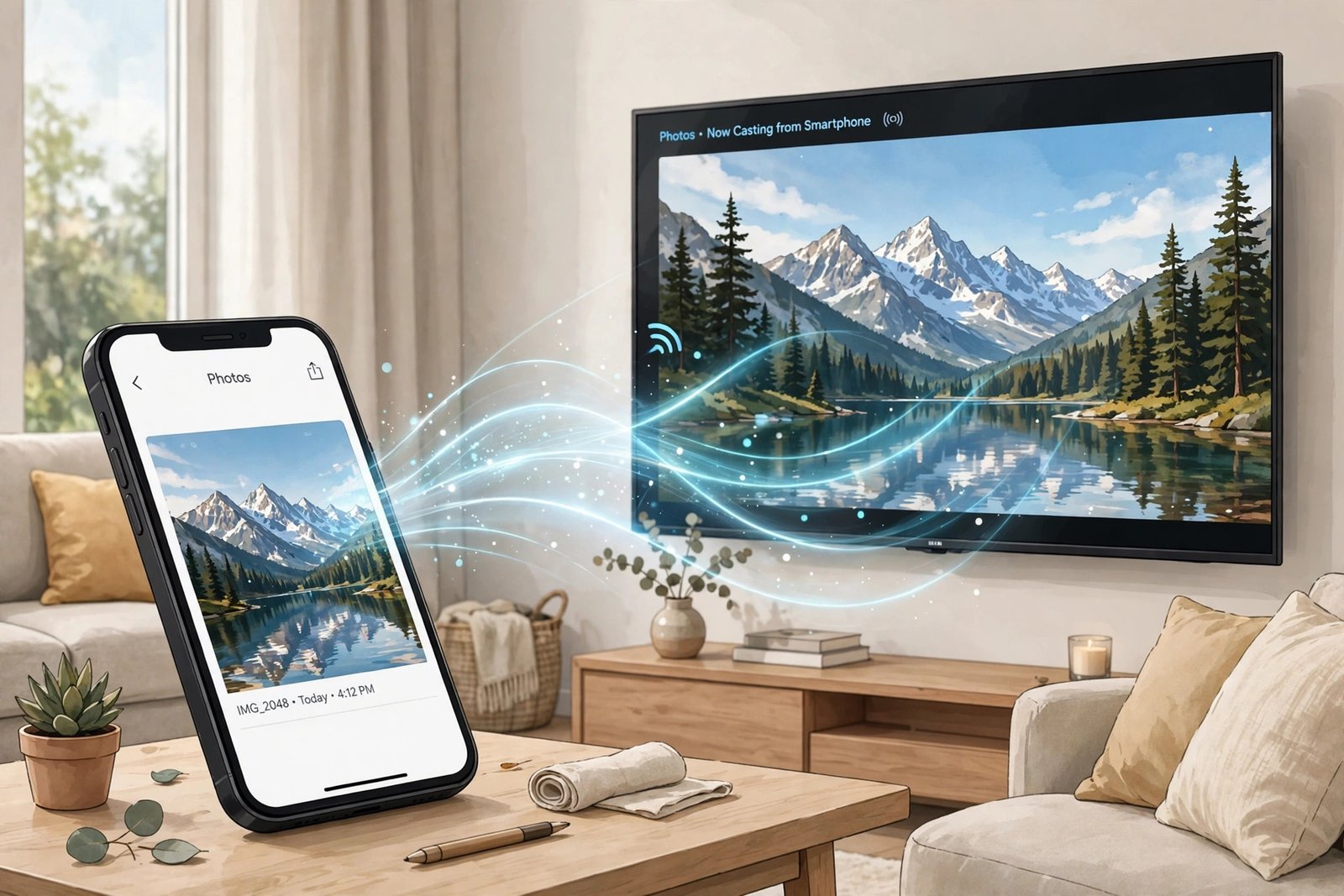
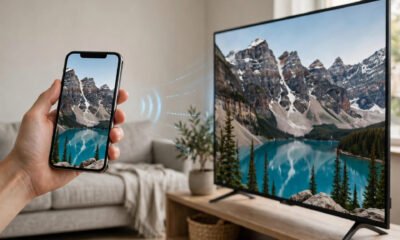
Screen mirroring copies whatever is on your phone, tablet, or laptop screen onto a bigger screen — like your TV — in real time. Scroll through photos on your phone, and they appear on the TV. Open a video, and it plays there too. It feels like magic the first time you see it, but the way it works is actually pretty straightforward: your device takes a live video of its own screen, squeezes that video into a small stream of data, sends it over Wi-Fi, and the TV unpacks it and shows it almost instantly. That is the whole trick. The rest of this guide walks through each step so you know exactly what is happening behind the scenes.
If you are on an iPhone and want the practical setup side of this, our complete guide to screen mirroring an iPhone to a TV walks through it step by step.
How screen mirroring works, step by step
Every mirroring session — no matter which phone, TV, or app you use — follows the same five steps. They repeat dozens of times per second for as long as you stay connected.
1. Your device captures its own screen
First, your phone or laptop takes a snapshot of what is currently on its display. On Android, this happens through a system feature called MediaProjection, and the phone asks for your permission first — that “Start now” prompt you see is the phone double-checking that you really want to share your screen. Your device keeps taking these snapshots many times every second, so the TV always shows what you are seeing.
2. The video gets compressed
Raw screen video is far too big to send over Wi-Fi in real time, so your device squeezes it down. It shrinks the resolution if needed and encodes the picture into a compact video stream (usually H.264, the same format used for online video). This compression is why the TV picture sometimes looks a little softer than your phone’s own screen — some detail is traded away to keep everything moving smoothly.
3. The stream travels over the air
The compressed stream is sent to the TV over a wireless connection. Most of the time both devices sit on the same Wi-Fi network, but some technologies like Miracast can connect the two devices directly to each other, with no router in between. Either way, a fresh slice of video is on its way to the TV many times per second.
4. The TV unpacks and displays it
On the receiving end, your TV or streaming stick decodes the stream — undoing the compression — and draws the result on its screen. This is the step where a tiny delay creeps in: capturing, compressing, sending, and unpacking each take a slice of time, so the TV picture usually trails your phone by a fraction of a second.
5. It all repeats, live
Steps one through four run in a continuous loop. Swipe to the next photo on your phone and the new image is captured, compressed, sent, and displayed — so fast that it feels like the TV is simply an extension of your phone.
The wireless roads your screen can take
There is no single worldwide standard for screen mirroring. Instead, a few different technologies do the same job, and your devices need to speak the same one:
- Miracast / Wi-Fi Direct: Built into Windows 10 and 11, Android phones, and many smart TVs. It can beam your screen straight from one device to another without a Wi-Fi network in the middle.
- Apple AirPlay: Apple’s own wireless protocol for iPhones, iPads, and Macs. It mirrors to Apple TV and to smart TVs that carry the “AirPlay” badge.
- Google Cast (Chromecast): Google’s protocol, built into Chromecast devices, Google TV, and many smart TVs and speakers.
- Wired connections: An HDMI cable, a USB-C to HDMI adapter, or a Lightning to HDMI adapter for iPhones. No wireless tricks at all — just a cable — which is why wired mirroring is usually the smoothest and most reliable option.
Confused about which one to pick? Our AirPlay vs. Chromecast comparison breaks down where each one wins.
Why there is always a tiny delay
If you have ever noticed that the TV is half a beat behind your phone, that is normal — it is called latency, and it comes from the four jobs in the pipeline: capturing, compressing, sending, and unpacking. On a good connection the delay is a fraction of a second and you barely notice it; on a busy or weak network it can stretch past a full second, and gaming or fast video starts to feel off.
A few things genuinely help: a strong Wi-Fi signal, keeping both devices close to the router, and — if your router has it — switching to the 5GHz band, which usually cuts mirroring lag noticeably compared to 2.4GHz. And keep your phone plugged in for long sessions, because continuously capturing and streaming your screen drains the battery faster than normal use.
Screen mirroring vs. casting: what is the difference?
People mix these up all the time, but they work differently:
- Screen mirroring duplicates your entire screen. Everything you do — apps, messages, notifications — shows up on the TV, exactly as it appears on your phone.
- Casting sends just one piece of content, like a YouTube video, to the TV. The TV then streams it straight from the internet on its own, and your phone is free — you can open other apps or even turn the screen off while the video keeps playing.
So if you want to show a presentation, a photo album, or a game, you want mirroring. If you just want a movie on the big screen while you keep scrolling, casting is the easier option.
What you need for screen mirroring to work
Before anything else, check these four things:
- Two compatible devices. Both your phone and your TV (or streaming stick) must support the same mirroring technology.
- The same network — usually. Most methods want both devices on the same Wi-Fi network. Miracast and some direct modes are the exception.
- The mirroring feature switched on. On iPhone it is “Screen Mirroring” in Control Center; on Android look for “Cast,” “Smart View,” or “Wireless Display”; on Windows press the Windows key + K.
- Up-to-date software. Old firmware is one of the most common reasons mirroring refuses to connect.
Quick answers
Does screen mirroring need Wi-Fi?
Not always. Miracast can connect devices directly, and a cable needs no network at all. But same-network Wi-Fi is how most people do it. We go through every option in our guide to screen mirroring without Wi-Fi.
Does mirroring record or save what I do?
No. The TV simply displays the live stream — it does not save a recording of your screen. Your TV may remember that your phone connected before, to make reconnecting quicker, but it does not keep what was shown.
Do I need a special app?
Sometimes. iPhones and most Android phones have mirroring built in, and Windows does too. If your TV does not support your phone’s protocol, a third-party app can bridge the gap — see our roundup of the best free screen mirroring apps.
Why does the picture look blurry?
Usually a weak connection. Your device lowers the stream quality to keep up, which softens the picture. Move closer to the router, switch to 5GHz Wi-Fi, or close other apps using the network.



How Does Screen Mirroring Work? Explained in Simple Terms

AirPlay vs Chromecast: Which One Is Better in 2026?

8 Best Free Screen Mirroring Apps for Phone, TV, and PC (2026)

Empower Your SEO and Design with Seotoolsgroupbuy.us’ Designer Plan

Sejda PDF Editor Review: Features, Pricing & Best Alternatives
