
Tech
How to Connect Bluetooth Headphones to Any Device: A Simple Guide

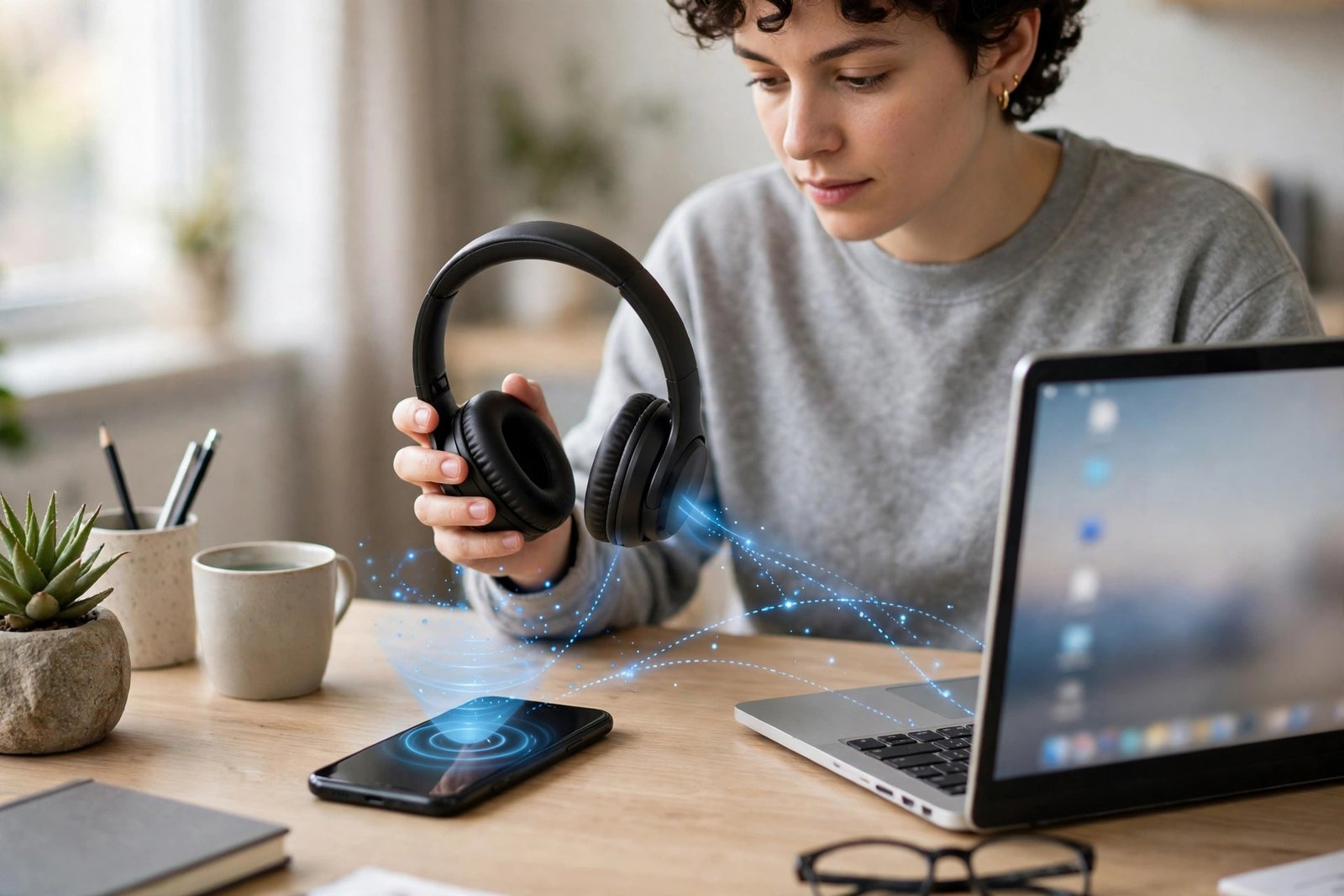
Connecting Bluetooth headphones is usually a two-minute job, but it can feel confusing the first time because every device hides the setting in a slightly different place. The good news is that the basic idea is always the same: put your headphones in pairing mode, open Bluetooth settings on your phone, computer, or TV, and tap your headphones’ name.
Quick answer: Turn your headphones on and put them in pairing mode (usually by holding the power or Bluetooth button until a light flashes), then open Bluetooth settings on your device and select your headphones from the list. Once paired, they should reconnect on their own next time Bluetooth is on and they are nearby. Apple’s official guide follows the same pattern for iPhone: put the accessory in discovery mode, then choose it in Settings > Bluetooth.
Before You Start
Do these three quick checks first, and you will avoid most pairing problems:
- Charge your headphones. Low battery is a common reason headphones refuse to pair or keep dropping out. Charge them fully if you can.
- Stay close. Keep your headphones within a few feet of the device while you pair. Walls and distance make the first connection harder.
- Disconnect from other devices. If your headphones are already connected to your laptop, they may not show up on your phone. Turn Bluetooth off on the other device, or disconnect the headphones there first.
How to Put Your Headphones in Pairing Mode
Pairing mode is what makes your headphones visible to other devices. The exact button is different by brand, so check your manual if you are unsure, but these are the most common ways:
- Over-ear headphones: Turn them off, then press and hold the power button for about 5 seconds until the light flashes blue and white, or you hear “pairing.”
- Wireless earbuds: Open the charging case with the earbuds inside, or take the earbuds out and hold the touch area or button until the light flashes. Some cases have a small pairing button on the back — hold it for a few seconds.
- Already paired headphones: If they turn on and connect straight to an old phone, you usually need to hold the power or Bluetooth button again to force a new pairing. Some models have a dedicated Bluetooth button for this.
If the light stays solid instead of flashing, your headphones are probably already connected to something else. Disconnect them there, then try pairing mode again.
How to Connect Bluetooth Headphones to an iPhone or iPad
- Put your headphones in pairing mode.
- On your iPhone or iPad, open Settings > Bluetooth and make sure Bluetooth is turned on. Stay on this screen while you pair.
- Under Other Devices, tap your headphones’ name.
- If asked, enter the PIN shown on screen or in your headphones’ manual. Common default PINs are 0000 or 1234.
- Once connected, your headphones move to My Devices and show as Connected.
Next time, just turn your headphones on with Bluetooth on your phone, and they should reconnect on their own. If they do not, go back to Settings > Bluetooth and tap their name under My Devices.
How to Connect Bluetooth Headphones to an Android Phone or Tablet
- Put your headphones in pairing mode.
- Open Settings, then tap Connected devices > Pair new device. On some phones the path is simply Settings > Bluetooth. A shortcut is to swipe down, touch and hold the Bluetooth icon, then tap Pair new device.
- Tap your headphones’ name under Available devices.
- Follow any on-screen prompts and tap Pair if asked. If a passcode is requested and you do not have one, try 0000 or 1234.
- When it says Connected, you are done. For sound, make sure Media audio is turned on in the device settings if your phone shows that option.
Many newer headphones also support Google Fast Pair. If yours does, you may see a pop-up near your phone as soon as you open the case or turn the headphones on — just tap Connect and follow the prompts.
How to Connect Bluetooth Headphones to a Windows 11 PC
- Put your headphones in pairing mode.
- On your PC, go to Start > Settings > Bluetooth & devices and make sure Bluetooth is switched on.
- Click Add device, then choose Bluetooth.
- Click your headphones’ name when it appears in the list.
- If a PIN appears, check that it matches, then click Connect, and click Done when Windows says your device is ready.
If your headphones never appear, go to Settings > Bluetooth > devices > Devices and set Bluetooth devices discovery to Advanced, then try again. Also check that your PC actually has Bluetooth — not every desktop does. If it does not, a small USB Bluetooth adapter will add it.
How to Connect Bluetooth Headphones to a Mac
- Put your headphones in pairing mode.
- Click the Apple menu, then open System Settings > Bluetooth and make sure Bluetooth is on.
- Click Connect next to your headphones’ name in the list.
- Once connected, click the sound icon in the menu bar if needed and make sure your headphones are chosen as the sound output.
How to Connect Bluetooth Headphones to a Smart TV
Not every TV has Bluetooth, so check first. On many Samsung TVs, the path is Settings > Sound > Sound Output > Bluetooth Speaker List, then Pair and Connect. On Google TV, it is Settings > Remote and accessories > Pair remote or accessory. Other brands use a similar Bluetooth or Sound Output menu.
- Put your headphones in pairing mode.
- Open your TV’s Bluetooth or Sound Output settings.
- Select your headphones from the list and confirm the pairing.
- If your TV has no Bluetooth setting at all, it probably does not support Bluetooth audio. In that case, a Bluetooth transmitter that plugs into the TV’s headphone jack or optical output can send the sound to your headphones instead.
Keep in mind that some TVs only allow one Bluetooth audio device at a time, and there can be a slight delay between lips and sound on older TVs. If the delay bothers you, a transmitter made for low-latency audio usually works better.
How to Switch Between Devices
Most headphones remember several paired devices, but they usually play sound from only one at a time. To switch, pause audio on the first device, then play audio on the second — or disconnect the headphones on the first device and connect them on the second.
Some newer headphones support multipoint, which means they can stay connected to two devices at once, for example a phone and a laptop. With multipoint, music on your laptop pauses when a call comes in on your phone. If your headphones support it, you may need to turn multipoint on in the brand’s app first.
Troubleshooting: When Bluetooth Headphones Won’t Connect
Your headphones don’t show up at all
This almost always means they are not in pairing mode, or they are already connected elsewhere. Put them back in pairing mode, turn Bluetooth off and on again on your device, move closer, and check that no other nearby phone or laptop has grabbed the connection.
You see “Pairing unsuccessful” or “Pairing rejected”
Forget the device on your phone or computer (Settings > Bluetooth > Forget This Device / Remove device), restart both devices, then pair from scratch. A stale pairing record is the most common cause of this error.
They connect but there is no sound
Check that your headphones are chosen as the output: on a phone, check the audio output in the media player or quick settings; on Windows, check Settings > System > Sound; on a Mac, check the menu-bar sound output. Also turn the volume up on both the device and the headphones — they have separate volume controls.
Sound keeps cutting out
Move closer, move away from Wi-Fi routers, microwaves, and USB 3.0 hubs, and charge your headphones. Bluetooth uses the same 2.4 GHz band as a lot of home gear, so interference is common when you are far away or behind thick walls.
They keep connecting to the wrong device
Headphones usually reconnect to the last device they used. Turn Bluetooth off on the device you do not want, or forget the headphones on that device if you no longer use them together.
If nothing above works, update your phone or computer software and check the headphone maker’s app for a firmware update. As a last resort, reset the headphones to factory settings using the steps in their manual — that clears all old pairings — and then pair again. If they still will not pair with any device, the problem is most likely hardware, and it is worth contacting the maker or a repair shop.
Frequently Asked Questions
Do I need to pair my headphones every time?
No. Pairing is a one-time setup. After that, your headphones should reconnect automatically whenever Bluetooth is on and they are in range and not connected to another device.
Can I connect Bluetooth headphones to two devices at once?
Only if your headphones support multipoint. Otherwise you can pair them with several devices, but only use one at a time — just disconnect from one before connecting to the other.
Why do my headphones ask for a PIN?
Some older or simpler headphones use a PIN to confirm pairing. Try 0000 or 1234 first, and check your manual if neither works. Most modern headphones skip the PIN entirely.
Can I use Bluetooth headphones with a TV that has no Bluetooth?
Yes, with a Bluetooth transmitter. Plug it into the TV’s headphone jack, optical output, or USB port as directed, put it in pairing mode, and pair your headphones to the transmitter instead of the TV.


How to Connect Bluetooth Headphones to Any Device: A Simple Guide

Who Is Jazzy Davidson? USC’s Breakout Star, Explained

Who Is Jalen Green? The Phoenix Suns Guard, Explained

Empower Your SEO and Design with Seotoolsgroupbuy.us’ Designer Plan

Twstalker Twitter Web Viewer: Guide to Anonymous Twitter Browsing
