
Tech
How to Borrow Library Books on Kindle (Free, With Libby)

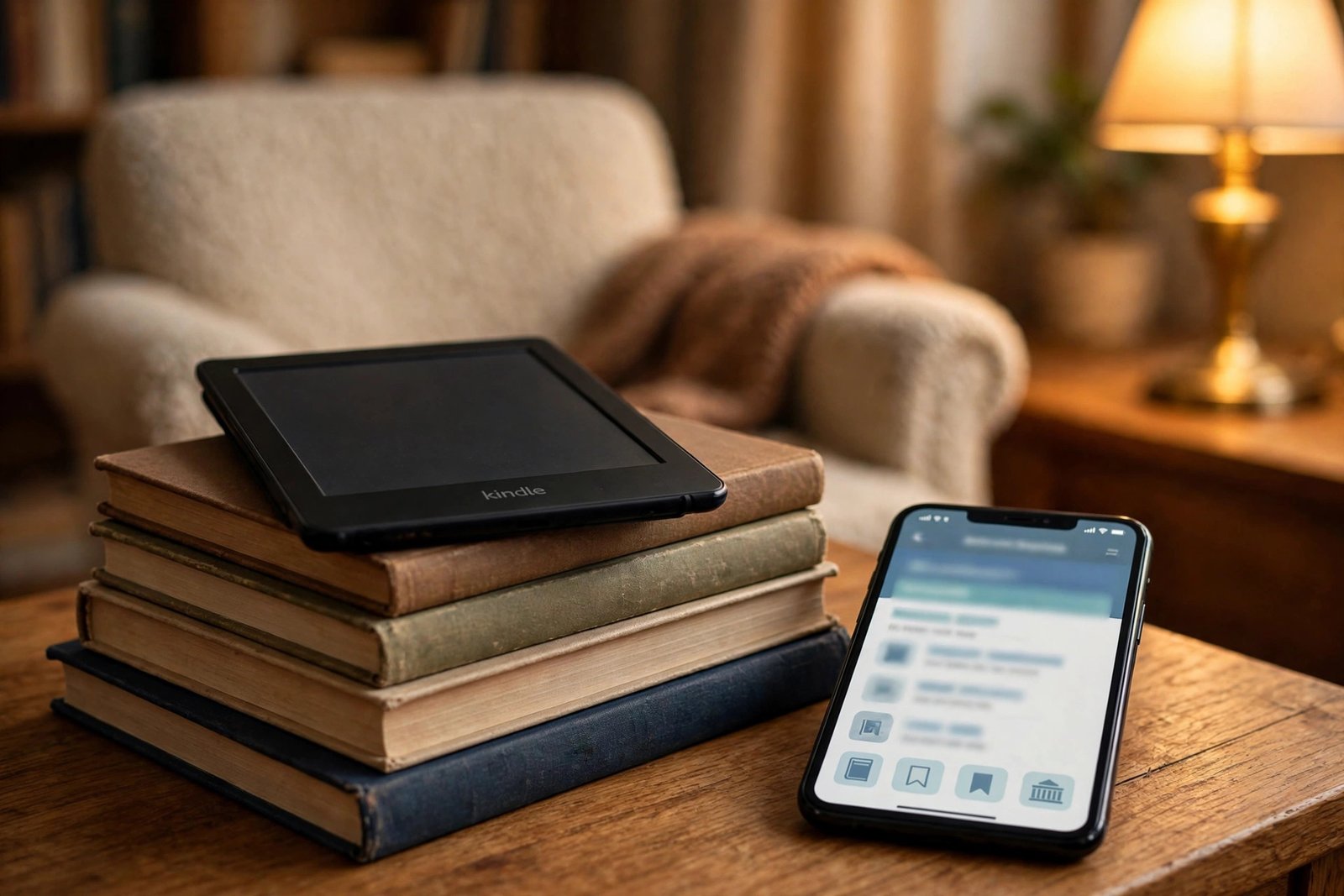
Your Kindle can be a free library card. With the free Libby app, you can borrow ebooks from your local public library and send them straight to your Kindle — no subscription, no late fees, and no buying the book first.
There is one catch that trips people up: a Kindle e-reader cannot run the Libby app itself. You borrow the book on your phone or computer, then hand it over to Amazon, which delivers it to your Kindle. Once you know that, the whole thing takes about ten minutes the first time, and just a couple of minutes after that.
Quick answer: Install the free Libby app, sign in with your library card, borrow a book, tap Read With… > Kindle, then tap Get Library Book on Amazon’s site. Connect your Kindle to Wi-Fi, sync it, and the book appears in your library. Get the app from the official Libby website if you do not have it yet.
What You Need Before You Start
You only need three things, and you probably already have two of them:
- A Kindle e-reader (or the Kindle app) registered to your Amazon account
- A free public library card from a library that lends ebooks through Libby
- A phone, tablet, or computer with the Libby app or the Libby website
If you do not have a library card yet, most US public libraries let you sign up for one free on their website in a few minutes. You will need the card number and, in many cases, a PIN to sign in to Libby.
Step 1: Set Up Libby With Your Library Card
- Download the Libby app on your phone or tablet, or open libbyapp.com on a computer.
- Follow the prompts to find your library — search by library name or ZIP code.
- Sign in with your library card number and PIN.
- If your library asks, choose how long you want loans to last. Most libraries offer 7, 14, or 21 days.
One setting is worth changing right now, because it saves you a tap on every future book: in Libby, open the menu, go to Read Books With…, and select Kindle. From then on, Libby will offer the Kindle option right after you borrow a book.
Step 2: Find a Book That Works With Kindle
- In Libby, search for a title or author, or browse your library’s collection.
- Before you borrow, check that the book is offered in Kindle format. In search results, use the filter, scroll to Read With…, select Kindle, and apply it — then every result you see can be sent to a Kindle.
- If the book is available, tap Borrow. If it is checked out, tap Place Hold instead, and Libby will notify you when your turn comes.
Not every ebook comes in Kindle format. Some publishers only allow EPUB, and those titles can only be read inside the Libby app. Filtering by Kindle first avoids that disappointment after you have already borrowed.
Step 3: Send the Book to Your Kindle
- After borrowing, tap Read With… and choose Kindle. (You can also do this later from your Shelf, under Loans.)
- Libby will open Amazon’s website in your browser. This is normal — you are leaving the Libby app on purpose.
- Sign in to Amazon with the same Amazon account your Kindle is registered to. This is the step people get wrong most often: if the accounts do not match, the book goes to the wrong library.
- Check the Deliver to menu shows the Kindle you want, if you own more than one.
- Tap Get Library Book.
That is it on the Amazon side. The loan is now in your Amazon library and queued for delivery to your Kindle.
Step 4: Sync Your Kindle and Start Reading
- Make sure your Kindle is connected to Wi-Fi.
- Open your Kindle library. If the book is not there yet, sync manually: on most Kindles, tap the three dots or swipe down from the top and tap Sync.
- Tap the book cover to download it, then open it and read like any other Kindle book.
Borrowed books show up alongside your purchased books, and they work the same way — bookmarks, highlights, and your reading position all behave normally while the loan lasts.
When the Loan Ends (and How to Return Early)
Library ebooks return themselves. When your loan period ends, the book simply stops opening — there are no late fees and nothing to remember. If you finish early, you can free the copy for the next reader: in Libby, go to Shelf > Loans, tap Manage Loan, and choose Return Early. You can also return a Kindle-format loan from your Amazon Content Library if you prefer.
Troubleshooting: Common Problems and Fixes
The book is not showing up on my Kindle
Check Wi-Fi first, then sync your Kindle manually. Next, confirm you signed in to Amazon with the same account your Kindle uses, and check the All view of your Kindle library rather than just Downloaded. If Amazon shows the book under Content & Devices but your Kindle does not, re-check the Deliver to device and send it again.
There is no “Read With Kindle” option
This almost always means that particular title is not offered in Kindle format by your library. Try another edition or title, or read it in the Libby app instead. If no book offers the Kindle option, check your reading preference under Libby’s menu: Read Books With… > Kindle.
I opened the book in Libby first — can I still send it to Kindle?
Yes, in most cases. Go to Shelf > Loans, tap Manage Loan, choose Read With…, and select Kindle. If that option is missing for that loan, return the book early and borrow it again, choosing Kindle before you open it.
The book disappeared before I finished it
Your loan period probably ended. Check the loan status in Libby before resetting anything — if it expired, just borrow the book again if it is available. Popular titles may need a new hold.
Can I read library books on the Kindle app too?
Yes. A loan delivered through Amazon appears in the Kindle app on your phone or tablet as well as on your e-reader, as long as both use the same Amazon account.
Frequently Asked Questions
Is borrowing library books on Kindle really free?
Yes. Libby is free, a public library card is free, and borrowed books cost nothing. You do not need Kindle Unlimited or any Amazon subscription.
Do I need a Kindle device, or does the Kindle app work?
Both work. The same steps send the book to a Kindle Paperwhite, a Kindle Scribe, or the Kindle app on your phone or tablet.
How many books can I borrow at once?
That depends on your library — many allow around 10 loans and 10 holds at a time, but limits vary, so check your library’s policy in Libby.
Can I borrow audiobooks the same way?
Libby lends audiobooks too, but those play in the Libby app, not on a Kindle e-reader. Audiobooks are a separate loan type, so do not expect them to appear on your Kindle.
If you are still deciding which device to read on, our guide to what an e-reader actually is explains how it differs from a tablet, and our Kindle vs Kobo comparison can help if you are choosing between the two most popular brands.




How to Borrow Library Books on Kindle (Free, With Libby)

MLB Salary Cap Fight Explained: Why a Lockout Is Looming on December 1

Who Is Joshua Groban? The California Supreme Court Justice on the November 3 Ballot

Empower Your SEO and Design with Seotoolsgroupbuy.us’ Designer Plan

Twstalker Twitter Web Viewer: Guide to Anonymous Twitter Browsing
