
Tech
How to Check Battery Health on iPhone and Android: A Simple Guide

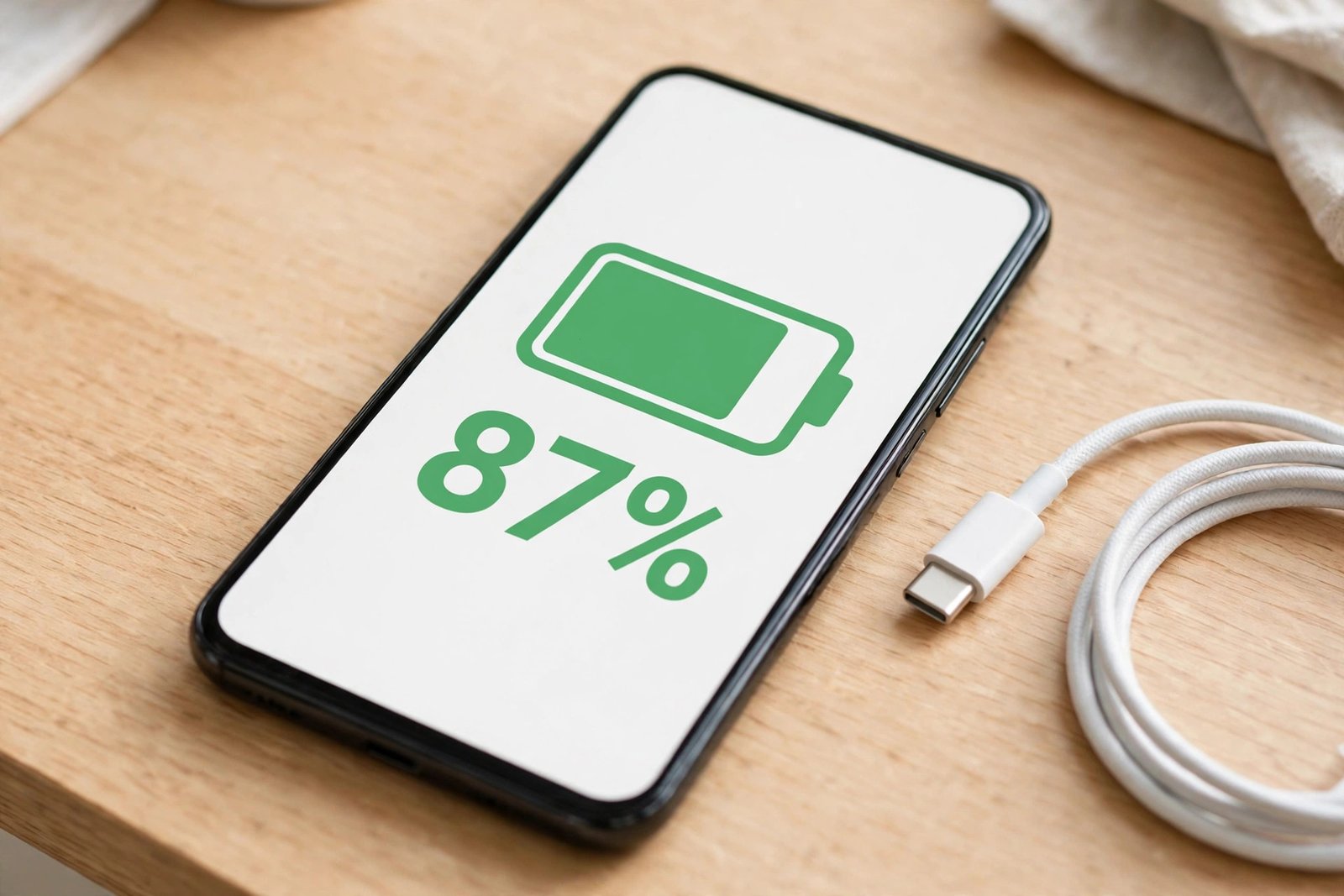
Wondering if your phone battery is still in good shape, or if it is the reason your phone dies so fast? Checking your battery health takes less than a minute on most phones, and it tells you something the battery percentage on your screen cannot: how much charge your battery can still hold compared to when it was new.
Quick answer: On an iPhone, go to Settings > Battery > Battery Health (on older models it is called Battery Health & Charging) and read the Maximum Capacity percentage. On a Pixel 8a or newer, go to Settings > Battery > Battery health. On a Samsung phone, use the Samsung Members app: Support > Phone Diagnostics > Battery status. If your phone shows no health figure at all, that is normal too — this guide explains what to do in that case.
What Battery Health Actually Means
Battery health is not the same as the battery percentage you see at the top of your screen. That percentage only tells you how full the battery is right now. Battery health tells you how big the “tank” has become over time.
All phone batteries wear out slowly. Every full charge and discharge — called a charge cycle — shaves a little off the total capacity. A phone that shows 85% battery health can still hold 85% of the charge it held when it was new. It will need charging more often, but it is not broken.
A charge cycle does not mean one plug-in. Using your phone from 100% down to 50%, charging it back to full, then using it down to 50% again adds up to one full cycle. That is why the number climbs slowly even if you charge your phone every day.
How to Check Battery Health on iPhone
Apple builds battery health reporting into every iPhone 6 and newer running iOS 11.3 or later. Here is how to find it:
- Open the Settings app.
- Tap Battery.
- Tap Battery Health (on iPhone 15 and later) or Battery Health & Charging (on iPhone 14 and earlier).
- Read the Maximum Capacity figure. A new battery reads 100%.
On iPhone 15 and later, the same screen also shows the cycle count, the date the battery was made, and the date it was first used. If your phone ever shut down unexpectedly because the battery could not deliver enough power, you may also see a note about Peak Performance Capability. That is your phone protecting itself, not a fault with the screen.
If you see a message saying your battery health is significantly degraded, or a “Service” note, Apple is telling you the battery has reached the end of its useful life and a replacement is worth considering.
How to Check Battery Health on Google Pixel
Google only shows a battery health status on newer Pixels, so the steps depend on your model:
- Open the Settings app.
- Tap Battery, then Battery health.
- Read the status: Normal means the capacity is within normal limits, and Reduced means it has dropped below 80%.
- Tap Battery capacity on the same screen to see the estimated percentage of the original capacity.
- To find the cycle count, go to Settings > About phone > Battery information.
This feature is only available on Pixel 8a and later. On a Pixel 6a, Pixel 7, Pixel 8, or Pixel 8 Pro, there is no battery health status in Settings at all. On those models, judge the battery by how long it lasts in normal daily use, and by whether it shuts down early or drains much faster than it used to.
How to Check Battery Health on Samsung
Samsung puts its battery check in the Samsung Members app rather than in Settings:
- Open the Samsung Members app (it comes pre-installed on Galaxy phones).
- Tap Support.
- Tap Phone Diagnostics, then Battery status.
- Run the check and read the result: it will tell you whether the battery is in good condition or needs attention.
On some Galaxy models you can also find battery information under Settings > Battery > Battery information, but the Samsung Members diagnostic is the more reliable check.
How to Check Battery Health on Other Android Phones
Android is not the same on every brand, so there is no single path that works everywhere. Try these in order:
- Open Settings and use the search bar at the top to search for “battery health”. If your phone has the feature, this finds it faster than tapping through menus.
- Look under Settings > Battery, then check for “Battery health”, “Battery information”, or “More battery settings”.
- Check your maker’s own app, such as a Device Care or diagnostics app, which often holds the battery check.
- If nothing shows a health figure, your phone simply does not report one. Many Android phones only show battery usage — which apps used power — and that is not battery health.
If your phone does not report battery health, a well-known app like AccuBattery can estimate it by watching how your phone charges over several days. Treat that number as an estimate, not an exact reading, and only download such apps from the official app store. No app can repair a worn battery or restore lost capacity, whatever it claims.
What Your Battery Health Number Means
Here is a simple way to read the result, whichever phone you have:
- 90% and above: effectively like new. Nothing to worry about.
- 85% to 89%: normal for a phone that is one or two years old.
- 80% to 84%: noticeably shorter battery life. Start planning for a replacement, but you do not need one today.
- Below 80%: the battery is worn out by most makers’ standards. Apple and Google both flag this point as the time to consider a replacement.
The number alone does not tell the whole story. Read it together with how the phone actually behaves. A phone at 82% that still gets you through the day is fine for now. A phone at 88% that shuts down at 20% has a problem the percentage is not showing, and it is worth getting checked.
When Should You Replace Your Battery?
Consider a replacement when two or more of these are true:
- Maximum capacity is below 80%, or your phone shows a “Service” or “Reduced” warning.
- You have to charge more than once a day when you did not before.
- The phone shuts down suddenly, even with charge left — especially in cold weather or when opening the camera.
- The battery percentage jumps around, for example dropping from 40% to 10% in a few minutes.
- The back of the phone or the screen looks swollen or lifted. Stop using and charging the phone straight away and get it checked — a swollen battery is a safety issue, not just an annoyance.
For most people, a battery replacement is far cheaper than a new phone and gives an older phone another year or two of useful life. Go to the maker or an authorised repairer so the replacement battery is genuine.
Troubleshooting: Common Problems
I cannot find a battery health option anywhere
Your phone probably does not offer one. This is common on older Pixels and many other Android phones. Use the maker’s diagnostics app, or judge the battery by real-world battery life: if it drains much faster than it did a year ago under the same use, the battery is wearing out.
The percentage dropped a few points after an update
Do not panic. After a major software update, battery life can look worse for a few days while the phone finishes background work. Check again after a week of normal use before drawing any conclusions.
My battery health is fine but the phone still drains fast
Then the battery is probably not the problem. A weak signal, a misbehaving app, high screen brightness, or heavy gaming and navigation drain a healthy battery quickly. If you want to dig into that side of things, our guide on why your phone battery drains so fast walks through the usual causes and fixes.
Can I improve my battery health percentage?
No. Once capacity is lost, it does not come back. What you can do is slow down further wear: avoid leaving the phone in a hot car or in direct sun, and do not leave it at 100% charge for days on end. Our battery saving tips for iPhone and Android cover the habits that actually help.
Frequently Asked Questions
Is 85% battery health good?
Yes. For a phone that is a year or two old, 85% is completely normal and nothing to worry about. You will notice slightly shorter battery life than when the phone was new, but it is not a sign of a fault.
How many charge cycles should a phone battery last?
Most modern phones are rated to keep about 80% capacity after 500 to 1,000 full cycles, depending on the model. iPhone 14 and later, and Pixel 8a and later, are rated for about 1,000 cycles. At one full cycle a day, that is close to three years.
Does fast charging damage battery health?
Fast charging adds some extra heat, which wears batteries faster over time, but modern phones manage charging speed to limit the damage. Using fast charging when you need it is fine; leaving the phone plugged in and hot for hours every day is what does the most harm.
Should I let my phone drain to 0% before charging?
No. That habit comes from old battery types. Modern lithium-ion batteries prefer small, regular top-ups. Charging between roughly 20% and 80% most of the time is gentler on the battery than full 0-to-100% cycles.
Checking your battery health once every few months is enough. It takes under a minute, it tells you whether a new battery or a new phone is the smarter spend, and it stops you guessing about a problem that has a simple answer.






7 Best WiFi Routers for Large Homes (2026)

How to Check Battery Health on iPhone and Android: A Simple Guide

Why Does My Phone Overheat While Charging? Causes and Fixes

Empower Your SEO and Design with Seotoolsgroupbuy.us’ Designer Plan

Twstalker Twitter Web Viewer: Guide to Anonymous Twitter Browsing
