
Tech
15 Best Battery Saving Tips for iPhone and Android (2026)

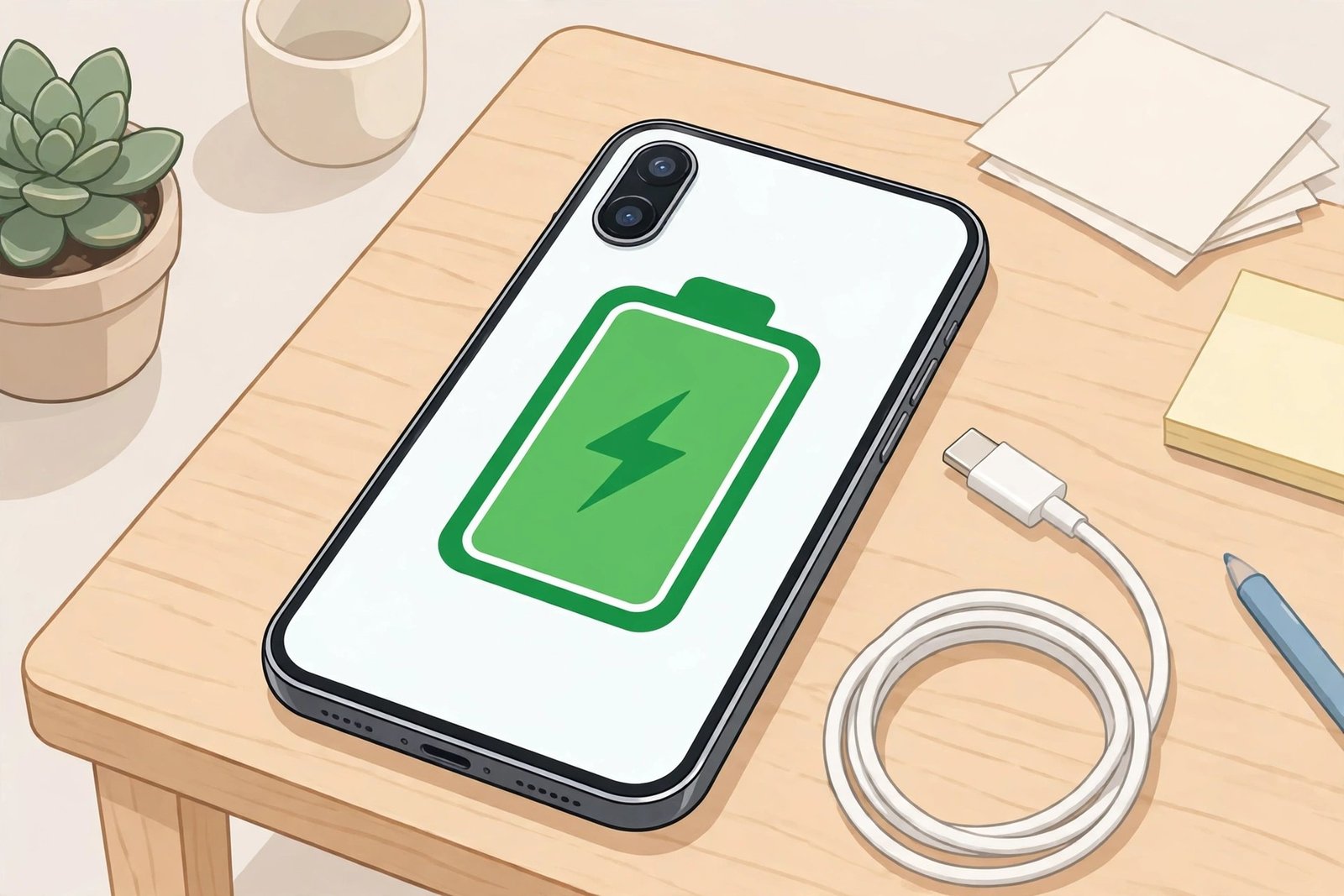
If your phone barely makes it to dinner time, you do not need a new battery yet. In most cases, a handful of settings and habits are quietly draining power all day. We put together this list from the settings that make the biggest real difference, the official guidance from Apple and Google, and the mistakes people keep making. Every tip below works on a modern iPhone or Android phone, and we note where the steps differ.
Start with the first five tips. They take about ten minutes in total and usually deliver the biggest improvement. Then work through the rest at your own pace.
Settings That Save the Most Battery
1. Turn Down Screen Brightness (or Use Auto-Brightness)
Your screen uses more power than almost anything else on your phone. Running it at full brightness all day is the single most common battery drain, and it is the easiest to fix. Turn on auto-brightness so the phone adjusts to the light around you, and pull brightness down manually when you are indoors.
iPhone: Settings > Display & Brightness > turn on Automatic. Android: Settings > Display > turn on Adaptive Brightness. If you mostly use your phone indoors, a medium brightness level is plenty.
2. Switch On Low Power Mode or Battery Saver When You Need It
Both iPhone and Android have a built-in power-saving mode, and it is far more effective than any battery app you can download. It cuts background activity, lowers brightness, and pauses things like automatic downloads and mail fetch until you charge again.
iPhone: Settings > Battery > Low Power Mode. You can also add it to Control Center for one-tap access. When it is on, the battery icon turns yellow, and it switches itself off once you charge to 80% or higher. Android: Settings > Battery > Battery Saver. On Pixel phones you can also set it to turn on automatically at a battery level you choose. Use it on long days away from a charger, not just when you hit 5%.
3. Limit Background App Refresh
Social media, shopping, and news apps refresh themselves in the background all day, even when you never open them. That constant updating is a slow, steady drain. Turn it off for apps that do not need to be current the second you open them.
iPhone: Settings > General > Background App Refresh, and switch it off for the worst offenders — or turn it off entirely and let apps refresh only on Wi-Fi. Android: Settings > Apps > pick an app > Battery, and restrict background use. Keep it on for messaging, maps, and email if you rely on instant notifications from them.
4. Use Dark Mode If Your Phone Has an OLED Screen
On phones with OLED screens — most recent iPhones and Samsung Galaxy models — dark mode genuinely saves power, because black pixels are switched off completely. On older LCD screens it makes little difference, so do not expect much there.
iPhone: Settings > Display & Brightness > Dark. Android: Settings > Display > Dark Theme. If you are not sure what screen your phone has, try it for a few days and check your battery usage before and after.
5. Shorten Your Screen Timeout
Every minute your screen stays on while you are not looking at it is wasted battery. Cutting the auto-lock time from two minutes to 30 seconds adds up to a surprising amount over a day, especially if you check your phone often.
iPhone: Settings > Display & Brightness > Auto-Lock > 30 Seconds. Android: Settings > Display > Screen Timeout > 30 seconds. Low Power Mode on iPhone sets auto-lock to 30 seconds automatically, which tells you how much Apple values this one.
Connections That Quietly Drain Your Battery
6. Switch Off 5G When the Signal Is Weak
5G is fast, but when the signal is weak your phone works much harder to hold the connection, and that burns battery quickly. If you are in an area with patchy 5G, dropping to 4G/LTE for the day costs you little in speed and can save a lot of power.
iPhone: Settings > Mobile Data > Mobile Data Options > Voice & Data > 4G. Android: Settings > Network & Internet > SIMs > Preferred Network Type > 4G/LTE. Switch back to 5G when you need the speed.
7. Set Location Access to “While Using” Instead of “Always”
Apps that track your location in the background — weather apps, shopping apps, social apps — keep the GPS and radios busy long after you close them. Most of them work perfectly well if they only get your location while you are actually using them.
iPhone: Settings > Privacy & Security > Location Services, and change each app from Always to While Using the App. Android: Settings > Location > App Permissions, and do the same. Keep Always only for apps that truly need it, like a family locator or a fitness tracker.
8. Turn Off Wi-Fi, Bluetooth, and Hotspot Searching When You Are Not Using Them
When Wi-Fi and Bluetooth are on, your phone keeps scanning for networks and devices to connect to. That scanning is small on its own, but it runs all day. If you are out and about with no headphones or network to connect to, switching them off helps — and turning off a personal hotspot you forgot about helps even more.
Use the quick settings panel on either phone to toggle them in seconds. Just remember to turn Wi-Fi back on at home, since Wi-Fi generally uses less power than mobile data.
9. Cut Notifications and Switch Email to Manual Fetch
Every notification wakes your screen, runs background processes, and pulls data. If you get hundreds a day, the total is far from trivial. Turn off notifications for apps you check on your own schedule anyway, and keep alerts only for messages, calls, and calendar reminders.
For email, switching from Push to Fetch — or to manual — stops your phone checking for new mail every few minutes. iPhone: Settings > Mail > Accounts > Fetch New Data. Android: open your mail app’s settings and change the sync frequency. You will still get your mail; it just arrives when you open the app instead of pushing constantly.
Habits That Make Your Battery Last Longer
10. Keep Your Charge Between Roughly 20% and 80% When You Can
Batteries wear out fastest at the extremes — sitting at 100% for hours, or running down to zero again and again. Staying in the middle range most of the time puts far less stress on the battery’s chemistry, so it holds its capacity for longer.
You do not need to be strict about it. Just avoid making a habit of overnight 100% charges and regular full discharges. If your phone supports it, turn on optimized charging: iPhone: Settings > Battery > Battery Health & Charging > Optimized Battery Charging, which holds the charge at 80% overnight and finishes just before you wake up. Most Android phones have a similar Adaptive Charging option in battery settings. For more on the overnight question, see our guide on whether charging your phone overnight is bad.
11. Keep Your Phone Cool
Heat is the biggest enemy of a phone battery over time. A phone left in direct sunlight, in a hot car, or under a pillow while charging will age faster than one kept at normal temperatures. Wireless charging creates a little extra heat too, so if your phone feels warm on a wireless pad, take the case off or switch to a cable.
If your phone gets hot during normal use, close heavy apps like games or video for a few minutes and let it cool down. A hot phone is also a sign that something is draining the battery hard in the background — check your battery usage screen to find the culprit.
12. Find and Fix the Apps That Drain the Most
Before changing anything else, look at what is actually using your battery. One badly behaved app can undo all your other savings.
iPhone: Settings > Battery, and look at usage over the last 24 hours and 10 days. Android: Settings > Battery > Battery Usage. If an app you barely use is near the top, restrict its background activity, update it, or delete it. If your phone still dies early after all of this, the problem may be deeper — our guide on why your phone battery drains so fast walks through the other causes, including battery health.
13. Keep Your Software Updated
Phone makers regularly fix battery-draining bugs in software updates, and newer versions usually manage power better than older ones. Put off updates for months and you may be running a known battery bug for no reason.
Turn on automatic updates if you can, and give the phone a day or two after a big update — it often does background housekeeping right after installing, which can look like extra drain for a short while before settling down.
Two Things That Do Not Help (Despite What You Hear)
14. Do Not Force-Close Apps All Day
Swiping apps closed feels productive, but modern phones are designed to freeze unused apps in memory, where they use almost no power. Reopening a closed app from scratch actually uses more energy than waking it from memory. Only force-close an app if it is frozen or misbehaving. Leave the rest alone.
15. Skip Third-Party Battery Saver Apps
Most battery saver apps promise big gains and deliver almost nothing. At best they duplicate what your phone’s built-in Battery Saver already does; at worst they run constantly in the background themselves, show ads, and ask for permissions they do not need. The settings built into your phone — Low Power Mode, Battery Saver, Adaptive Battery — are safer and more effective. Save your storage and your patience.
Common Questions About Saving Phone Battery
Does dark mode really save battery?
Yes, but only on OLED screens, where black pixels are fully off. On LCD screens the backlight stays on regardless, so dark mode saves very little. If your phone is from the last few years, it probably has an OLED screen and dark mode is worth using.
Is it bad to use Low Power Mode all day?
It will not damage your battery, but it is not meant as an everyday setting. It limits mail fetch, background refresh, and visual effects, so your phone feels slower and less responsive. Use it when you need extra hours, and switch it off when you can charge again.
Should I always charge my phone to 100%?
For daily use, no — stopping around 80% is gentler on the battery long term. But do not stress about it. Charging to 100% before a long day out is fine; battery health is about long-term patterns, not a single charge.
Why does my battery still drain fast after trying everything?
Check battery health: on iPhone, Settings > Battery > Battery Health & Charging. Apple considers a battery worn when it drops below 80% of its original capacity, and it is designed to reach that point after about 500 full charge cycles. On Android, battery health is shown in Settings > Battery on many models. If health is low, no setting will fix it — a battery replacement will.
The Bottom Line
You do not need to do all 15 of these. Start with brightness, Low Power Mode, and background refresh — those three alone fix most fast-draining phones. Then fix location permissions and notifications, and keep your charging habits in the comfortable middle range. Do that, and your phone should comfortably last the day, and its battery should stay healthy for years longer.



15 Best Battery Saving Tips for iPhone and Android (2026)

Is It Bad to Charge Your Phone Overnight?

How to Change Your Wi-Fi Password: A Simple Step-by-Step Guide

Empower Your SEO and Design with Seotoolsgroupbuy.us’ Designer Plan

Sejda PDF Editor Review: Features, Pricing & Best Alternatives
