
Tech
8 Best Free Screen Mirroring Apps for Phone, TV, and PC (2026)

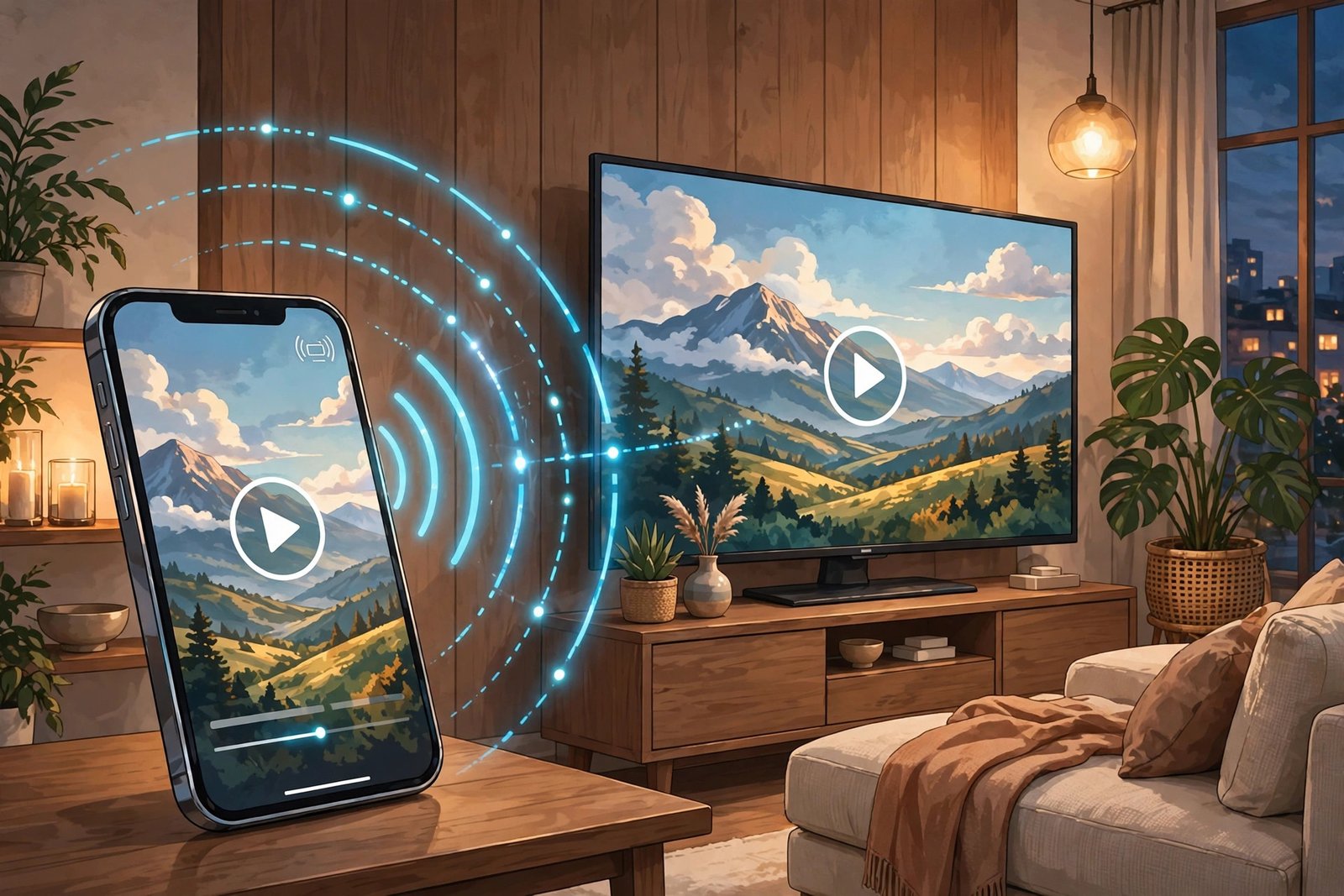
Looking for a screen mirroring app that doesn’t make you pay before you even see it work? We tested the landscape and picked 8 apps that all have a real, usable free tier you can download today. Every app on this list was checked against its official page — no trial-only “free” apps, and nothing discontinued. They cover the three things most people actually want to do: mirror a phone to a TV, mirror a phone to a computer, or share a screen for work and support.
If you haven’t set up mirroring at all yet, our step-by-step guide to screen mirroring an iPhone to a TV walks you through the basics first.
Quick comparison
| App | Best for | Platforms | Free tier |
|---|---|---|---|
| Google Home | Android phones to TV | Android, Chromecast / Android TV | Fully free |
| Samsung SmartThings | Galaxy phones to Samsung TVs | Android (Galaxy), Samsung TV | Fully free |
| LetsView | Free cross-platform mirroring | Android, iOS, Windows, Mac, smart TV | Fully free |
| scrcpy | Android to PC, no bloat | Android to Windows/Mac/Linux | Fully free, open source |
| ApowerMirror | Phone to PC with remote control | Android, iOS, Windows, Mac | Free version with limits |
| AirDroid Cast | Mirroring through a web browser | Android, iOS, Windows, Mac, web | Free version with limits |
| Vysor | Android to PC for developers | Android to Windows/Mac/Linux, browser | Free version with limits |
| TeamViewer | Remote support and screen sharing | Windows, Mac, Linux, Android, iOS | Free for personal use |
Best free apps for mirroring to a TV
1. Google Home — the simplest way to cast an Android screen
If you have an Android phone and a Chromecast or Chromecast-compatible TV, you probably already have everything you need. The free Google Home app (by Google) includes a “Cast screen” option that mirrors your whole phone display to the TV over your home Wi-Fi.
Who it’s for: anyone with an Android phone and a Chromecast or Android TV. Setup takes about two minutes, and there are no ads or subscriptions.
The catch: it only casts from Android — iPhones can’t use it for screen mirroring, and there’s no way to mirror to a computer. Fast-moving games show noticeable lag, so it’s better for videos, photos, and presentations than for gaming.
Get it from Google (Google Play)
2. Samsung SmartThings — mirror a Galaxy phone to a Samsung TV
Samsung’s SmartThings app (free) handles what its old Smart View feature used to do: mirror your Galaxy phone’s screen to a Samsung smart TV with one tap. Both devices just need to be on the same Wi-Fi network.
Who it’s for: Samsung phone and Samsung TV owners. It’s the most reliable free option for that combination — no third-party app needed, and it supports audio and decent quality for videos.
The catch: it’s a Samsung-only pairing. If your TV is from another brand, look at LetsView or Google Home instead.
Samsung’s screen mirroring support page
3. LetsView — completely free, works on almost everything
LetsView is the standout on this list for one reason: it’s genuinely free, not a limited trial. It mirrors your screen over Wi-Fi between Android, iPhone, Windows, Mac, and smart TVs, and it even includes screen recording and annotation tools that most apps charge for.
Who it’s for: anyone who wants a no-cost app that works across brands and platforms. Connecting is quick — you usually scan a QR code and you’re mirrored in seconds.
The catch: there’s no USB wired option, so you’re dependent on your Wi-Fi being solid. It also doesn’t let you control the phone from the computer, the way some paid tools do.
Get it from LetsView’s official site
Best free apps for mirroring to a computer
4. scrcpy — free, open source, no-nonsense Android mirroring
scrcpy (pronounced “screen copy”) is a free, open-source tool by Genymobile that mirrors your Android phone to a Windows, Mac, or Linux computer. It connects over USB or Wi-Fi and is famous for its low latency — the mirror feels almost instant, especially over a cable.
Who it’s for: people who want to see and control their Android phone from a PC without ads, accounts, or watermarks. It’s a favorite of developers and anyone who records app demos.
The catch: it’s a command-line tool, so there’s no pretty app window with big buttons — you need to be comfortable following the setup instructions on its GitHub page. It also doesn’t do iPhone.
Get it from the official scrcpy page on GitHub
5. ApowerMirror — mirror your phone and control it from your PC
ApowerMirror covers Android, iPhone, Windows, and Mac with Wi-Fi, USB, QR code, and PIN connections. Its standout feature is that you can operate your phone with your computer’s keyboard and mouse while it’s mirrored — handy for typing messages or demoing apps without touching the phone. The free version has limits, with paid plans unlocking the full feature set.
Who it’s for: presenters, streamers, and anyone who wants full two-way control of the phone from a PC.
The catch: the free version restricts session length and adds a watermark to recordings, so heavy users will eventually need a paid plan.
Get it from ApowerMirror’s official site
6. AirDroid Cast — mirror in a web browser, no PC software needed
AirDroid Cast mirrors Android and iPhone screens to Windows, Mac, and even a web browser tab. That browser option is its best trick: on a computer where you can’t install software, you just open a web page and scan a code. The free version covers the basics, with paid tiers for longer sessions and more devices.
Who it’s for: people who mirror on shared or work computers where installing apps isn’t allowed, and anyone who likes browser-based tools.
The catch: free sessions are limited, and audio forwarding can be finicky on some phone models.
Get it from AirDroid’s official site
7. Vysor — Android on your PC, popular with developers
Vysor puts your Android screen in a window on your Windows, Mac, or Linux computer (or a Chrome browser tab) and lets you control it with your mouse and keyboard. It connects over USB or Wi-Fi, and the free version is enough for basic mirroring and testing. It’s especially popular with Android developers who test apps on real devices.
Who it’s for: developers and tinkerers who spend their day on a computer and want their phone’s screen right there too.
The catch: the free tier has quality and feature limits (wireless mirroring and high-quality mode sit behind the paid plan), and it’s Android-only.
Get it from Vysor’s official site
Best free app for business and remote support
8. TeamViewer — secure screen sharing for helping others
TeamViewer is better known as a remote-support tool, but it handles screen mirroring too — across Windows, Mac, Linux, Android, and iOS. It uses encrypted sessions, which is why IT teams and helpdesks rely on it. It’s free for personal use, which covers helping a family member fix their phone from across the country.
Who it’s for: anyone mirroring for tech support, remote troubleshooting, or business presentations where security matters.
The catch: setup is heavier than the purpose-built mirroring apps above, and business use requires a paid license. It’s overkill if you just want to watch phone videos on your TV.
Get it from TeamViewer’s official site
How to pick the right one
Match the app to your two devices, and the choice gets easy:
- Android phone → TV: start with Google Home (Chromecast/Android TV) or SmartThings (Samsung TV). Both are completely free.
- iPhone or mixed brands → TV: LetsView is the free cross-platform pick.
- Phone → computer, simplest free option: scrcpy for Android (best quality, no cost) or LetsView if you want a normal app interface.
- Need to control the phone from the PC: ApowerMirror or Vysor.
- Can’t install software on the computer: AirDroid Cast’s browser mode.
- Helping someone remotely: TeamViewer.
Frequently asked questions
Are these screen mirroring apps really free?
Google Home, Samsung SmartThings, LetsView, and scrcpy are fully free with no paid tier blocking the core mirroring. ApowerMirror, AirDroid Cast, and Vysor have genuinely usable free versions with limits, and TeamViewer is free for personal use. We checked each app’s official page before including it.
Do screen mirroring apps work without Wi-Fi?
Most wireless apps need Wi-Fi, but there are workarounds. USB-based mirroring (scrcpy, Vysor, ApowerMirror over USB) works without Wi-Fi, and some apps use Wi-Fi Direct, which connects devices directly without a router. We covered the full details in our guide on how to screen mirror without Wi-Fi.
Which free app has the lowest lag?
Wired beats wireless every time. scrcpy over USB is the fastest free option — the mirror feels nearly instant. Over Wi-Fi, expect a small delay on all of these apps; it’s fine for video and presentations but noticeable in fast games.
Can I mirror my iPhone with these apps?
Yes, with the cross-platform ones: LetsView, ApowerMirror, AirDroid Cast, and TeamViewer all support iPhone. Google Home, scrcpy, Vysor, and Samsung SmartThings are Android-only, so iPhone users should skip those.
Is it safe to use free screen mirroring apps?
Stick to the official apps on this list and download them from their official sites or the official app stores — never from random APK sites. For work or anything sensitive, prefer encrypted options like TeamViewer and avoid mirroring over public Wi-Fi.


AirPlay vs Chromecast: Which One Is Better in 2026?

8 Best Free Screen Mirroring Apps for Phone, TV, and PC (2026)

Can You Screen Mirror Without WiFi? Yes — Here’s How

Empower Your SEO and Design with Seotoolsgroupbuy.us’ Designer Plan

Sejda PDF Editor Review: Features, Pricing & Best Alternatives
