
Tech
Chrome Password Manager vs Dedicated Password Manager: Which Is Better in 2026?

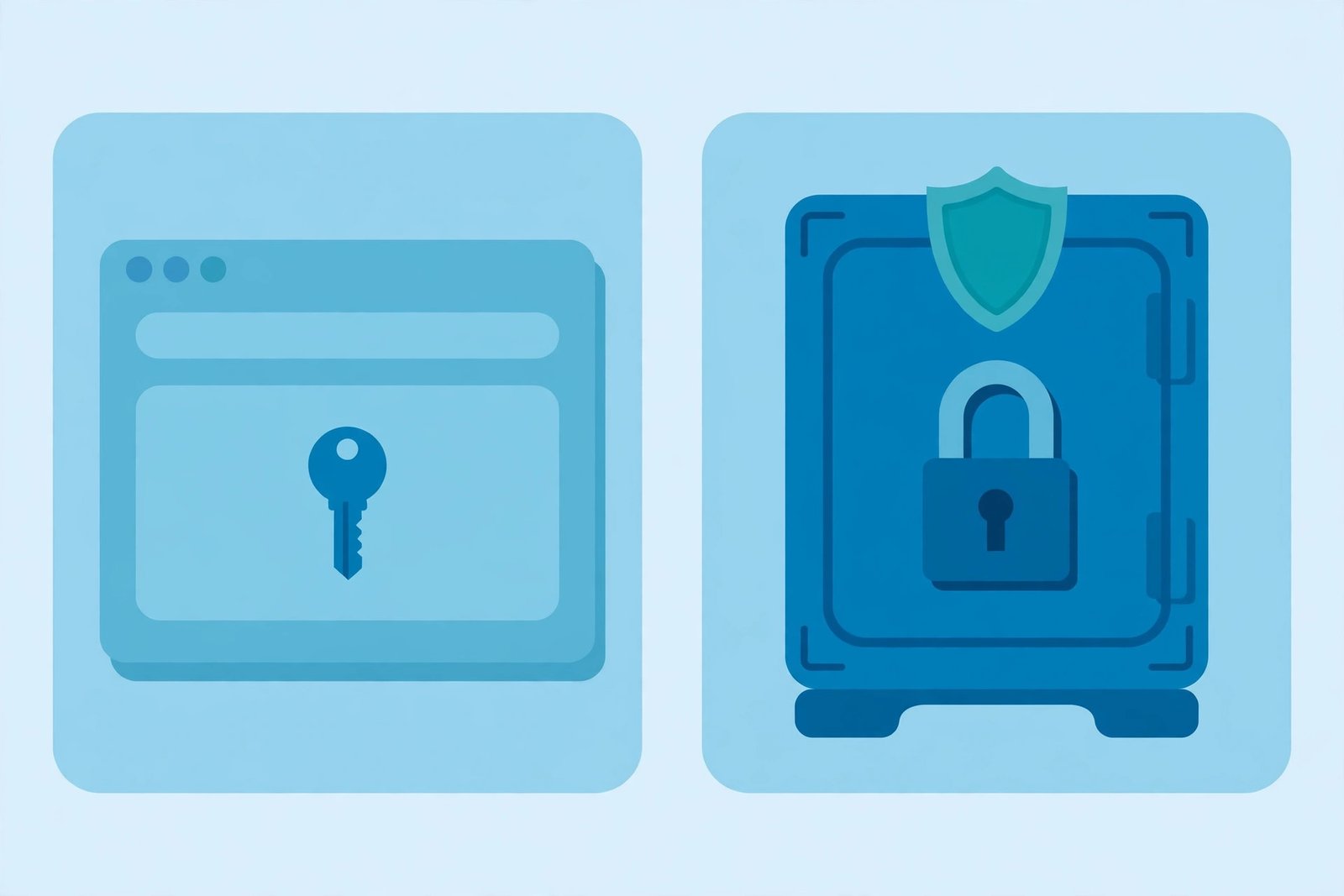
If you save passwords in Chrome, you already use a password manager — Google’s built-in one. But is it enough, or should you switch to a dedicated password manager like Bitwarden or 1Password? The honest answer: it depends on how you use the internet.
Quick answer: Chrome’s built-in password manager is free, easy, and fine if you only use Chrome and never share passwords. A dedicated password manager is better for most people, because it works in every browser and app, uses its own master password, and adds sharing, security checks, and emergency access. If you want the short version: stay with Chrome only if your digital life lives entirely inside Chrome — otherwise, a dedicated manager wins. You can manage your saved Chrome passwords at Google Password Manager.
What Is Chrome’s Built-In Password Manager?
Google Password Manager is built into the Chrome browser. When you log in to a website, Chrome offers to save the password. Later, it fills it in for you automatically. If you are signed in to Chrome with your Google account, those passwords sync across your devices — your laptop, your Android phone, and any other device where you use Chrome.
It costs nothing and needs no setup. That is its biggest strength — and, as you will see, also part of its weakness.
What Is a Dedicated Password Manager?
A dedicated password manager is a separate app whose only job is storing your logins safely. Popular examples include Bitwarden and 1Password. You unlock it with one master password, and it stores everything else: website logins, credit card details, secure notes, and passkeys.
Unlike Chrome’s manager, a dedicated manager works everywhere — in Chrome, Firefox, Safari, Edge, and inside mobile apps, not just in a browser. Most use zero-knowledge encryption, which means even the company behind the app cannot read your vault.
Chrome vs Dedicated Password Manager: Side-by-Side Comparison
| Feature | Chrome Password Manager | Dedicated Password Manager |
|---|---|---|
| Price | Free, built into Chrome | Free tiers available; paid plans add extra features (Bitwarden Premium is $1.65/month billed annually as of November 2026) |
| Master password | No — protected by your Google account and device lock | Yes — a separate master password only you know |
| Works in other browsers | No — Chrome only | Yes — all major browsers |
| Works in mobile apps | Limited (Android autofill only) | Yes — autofill in apps on iOS and Android |
| Password sharing | No real sharing feature | Yes — share securely with family or team members |
| Security checks | Basic password checkup | Weak, reused, and breached-password reports |
| Secure notes and cards | Passwords and payment methods only | Yes — notes, cards, IDs, and file attachments |
| Emergency access | No | Yes, on most paid plans |
| Passkey support | Yes | Yes |
Security: Which One Protects You Better?
Both options are far better than reusing the same password everywhere or writing passwords on paper. But their security models are different.
Chrome’s manager leans on your Google account. If someone gets into your Google account — or picks up your unlocked computer — they can reach your saved passwords. Chrome does not ask for a separate master password before filling in a login.
A dedicated manager adds a separate wall. Even if someone has your unlocked phone, they still need your master password (or biometrics) to open the vault. And because of zero-knowledge encryption, a breach at the password manager company itself does not expose your passwords — the company holds only encrypted data it cannot read.
One fair point in Chrome’s favor: because it is built into the browser, there is no third-party extension to go wrong. But for most people, the separate master password and vault isolation of a dedicated manager are the stronger setup.
Ease of Use: Which One Is Simpler?
Chrome wins on simplicity. There is nothing to install and nothing to learn. If you already use Chrome everywhere, saving and filling passwords just happens.
A dedicated manager takes about 15 minutes to set up: install the app and browser extension, create your master password, and import your saved Chrome passwords. After that, daily use feels the same — it fills in your logins automatically. The small setup cost buys you a lot of flexibility.
Cross-Platform Use: Where the Dedicated Manager Pulls Ahead
This is the deciding factor for many people. Chrome’s manager only works in Chrome. The moment you open Firefox, Safari, or a banking app on your phone, it cannot help you.
A dedicated manager follows you everywhere: every browser, every operating system, and inside apps. If you ever switch browsers, change phones, or use a work computer with a different browser, your passwords come with you.
Sharing Passwords With Family
Sharing is where dedicated managers really shine. Families share streaming logins, Wi-Fi passwords, and school accounts all the time — and texting a password is a bad habit. A dedicated manager lets you share a login securely, and revoke access later if needed.
Chrome has no real password-sharing feature. If your household shares accounts, this alone is a reason to switch. If you want ideas for a family setup, see our guide to the best password managers for families.
Price Comparison (November 2026)
Chrome’s password manager is free. Bitwarden offers a free tier for individuals that covers unlimited passwords and devices, with a Premium plan at $1.65 per month billed annually ($19.80 per year) and a Families plan at $3.99 per month billed annually, according to Bitwarden’s pricing page. 1Password is a paid-only service with individual and family plans. Prices change, so check the official pricing page before you buy.
For most people, the free tier of a good dedicated manager is enough — you do not have to pay to get the core benefits.
Which Is Better for You?
Stick with Chrome’s password manager if: you only ever use Chrome, you never share passwords with anyone, and your Google account is secured with a strong password and two-factor authentication. For a simple, Chrome-only life, it is genuinely good enough.
Switch to a dedicated password manager if: you use more than one browser, you need passwords inside mobile apps, you share logins with family, you want a separate master password, or you want security reports that flag weak and reused passwords.
The bottom line: Chrome’s manager is a solid starting point, but a dedicated password manager is the better long-term choice for most people. It costs little or nothing, works everywhere, and separates your passwords from any single company’s account.
How to Switch From Chrome to a Dedicated Manager
Switching is easier than most people expect. Pick a manager, create your account, then export your saved passwords from Chrome and import them into the new vault. The whole move usually takes about 15 minutes. Once you confirm everything imported correctly, turn off Chrome’s “offer to save passwords” setting so you do not end up with two half-filled vaults. Your new manager becomes the single source of truth.
If you are still unsure whether saving passwords in a browser is safe at all, read our honest breakdown: Is It Safe to Save Passwords in Chrome?
Frequently Asked Questions
Is Chrome’s password manager safe enough?
For basic personal use, yes — especially if your Google account has strong two-factor authentication and your devices are locked. But it lacks a separate master password and works only in Chrome, so a dedicated manager is safer for important accounts.
Is a dedicated password manager really free?
Many are. Bitwarden’s free tier covers unlimited passwords and devices for one person. Paid plans add features like emergency access, security reports, and file storage, but the free version handles the essentials.
Can I use both Chrome and a dedicated manager?
You can, but it is not a good idea. Two systems competing to save passwords leads to duplicate prompts and split storage, where some passwords live in Chrome and others in your manager. Pick one and turn the other one off.
What happens if I forget my master password?
With a zero-knowledge manager, the company cannot reset it for you — that is the trade-off of real privacy. Most managers offer emergency access through a trusted contact, or a recovery code you should store somewhere safe, like a printed copy at home.





How to Check If Your Password Has Been Leaked (Free, in 5 Minutes)

Who Is Sonny Styles? The Commanders Rookie Turning Heads, Explained

Justin Hartley Tracker Season 4 Episode 5: Jensen Ackles Returns, Explained

Empower Your SEO and Design with Seotoolsgroupbuy.us’ Designer Plan

Twstalker Twitter Web Viewer: Guide to Anonymous Twitter Browsing
