
Tech
How to Fix WiFi That Keeps Disconnecting: 12 Simple Fixes

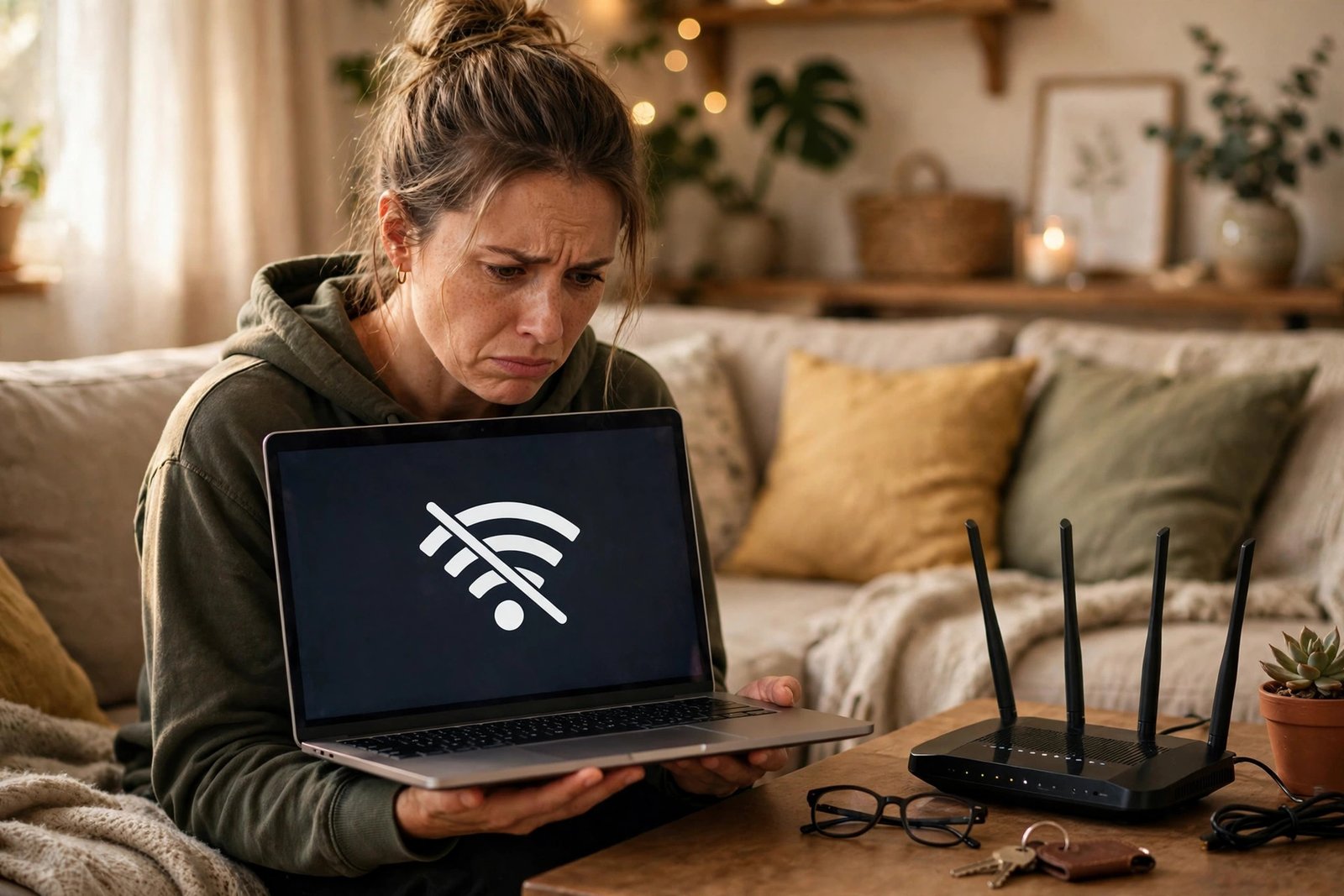
WiFi that keeps disconnecting is one of the most annoying home tech problems. One minute you are on a video call or streaming a show, the next you are staring at a loading wheel — and then it comes back on its own, for no clear reason.
Quick answer: In most cases, the fix is simple. Restart your router, forget the network on your device and reconnect, and move closer to the router to test the signal. If the problem affects every device in your home, the router or your internet line is the likely cause. If only one device drops, that device’s settings, driver, or power-saving options are usually to blame. Work through the fixes below in order — start with the easy ones, and only move to the advanced steps if the drops continue.
First, Find Out Where the Problem Is
Before changing settings, spend two minutes narrowing it down. This saves you from fixing the wrong thing.
- Does it happen on every device, or just one? If your phone, laptop, and TV all drop at the same time, suspect the router or your internet service. If only one device drops while the others stay connected, focus on that device.
- Does it happen everywhere in your home, or in one spot? Drops that only happen in a far bedroom or upstairs usually mean a weak signal, not a broken router.
- Does a wired connection stay stable? If you can, plug a laptop into the router with an Ethernet cable for a while. If the wired connection never drops but WiFi does, the problem is your wireless signal, not your internet line. If the wired connection drops too, contact your internet provider — the line itself may be at fault.
- When does it drop? Drops every few minutes, drops at the same time each evening, and drops only when you walk to another room all point to different causes, covered in the troubleshooting section below.
If your connection is slow as well as unstable, the two problems often share a cause, so it is worth reading our guide on how to fix slow WiFi at home alongside this one.
12 Fixes for WiFi That Keeps Disconnecting
1. Restart Your Router and Modem
This fixes more disconnects than anything else, and it takes two minutes.
- Unplug your modem and your router from the power outlet. If they are a single combined box, just unplug that one box.
- Wait at least 30 seconds. This lets the hardware fully power down and clear temporary glitches.
- Plug the modem back in first and wait until its lights settle (usually 1–2 minutes).
- Plug the router back in and wait for its WiFi light to come on.
- Reconnect your device and see if the drops stop.
If a restart fixes it but the problem returns every few days, your router may be overheating, overloaded, or simply old — see fix 12.
2. Restart the Device That Keeps Dropping
Phones, laptops, and TVs all build up temporary network glitches over time. A full restart — not just locking the screen — clears them. Restart the affected device, reconnect to WiFi, and test for a while before moving on.
3. Move Closer to the Router to Test the Signal
Walk to the same room as your router and use your device there for 15–20 minutes. If the connection stays stable close up but drops in your usual spot, you have a range problem, not a settings problem. The long-term answers are moving the router to a more central spot, adding a mesh system or extender, or connecting that device to the 5 GHz band (fix 5). WiFi also struggles through thick walls, metal appliances, and fish tanks, so a clear line of sight helps more than people expect.
4. Forget the Network and Reconnect
A saved network profile can become corrupted after a router change or software update. Forgetting it and joining fresh often ends random drops.
- iPhone: Go to Settings > Wi-Fi, tap the small “i” next to your network name, tap Forget This Network, then reconnect and enter the password again.
- Android: Go to Settings > Network & internet > Wi-Fi, tap your network (or Saved networks), then tap Forget. Reconnect and enter the password again.
- Windows: Go to Settings > Network & internet > Wi-Fi > Manage known networks, find your network, and click Forget. Then reconnect.
- Mac: Go to System Settings > Wi-Fi, click Details next to your network, and choose Forget This Network. Then reconnect.
You will need your WiFi password again, so have it ready before you forget the network.
5. Stop Your Device Hopping Between WiFi Bands
Most modern routers broadcast two bands: 2.4 GHz, which reaches farther but is more crowded, and 5 GHz, which is faster and less crowded but does not travel as far. If your router merges them into one network name, some devices keep hopping between bands — and each hop can look like a brief disconnect.
- Check whether your router shows two network names (for example, “HomeWiFi” and “HomeWiFi-5G”). If it does, connect your problem device to just one of them and test it.
- If you sit close to the router, try 5 GHz. If you sit far away or through several walls, try 2.4 GHz.
- If your router settings let you split the bands into separate names, doing so gives you control over which band each device uses.
The two bands work differently, and picking the right one for each device solves a surprising number of “random” drops. Our plain-English explainer on how WiFi works covers the difference in more detail.
6. Turn Off “Switch to Mobile Data” Features
Phones are designed to abandon weak WiFi and fall back to mobile data. When the signal wobbles, that feature can make the phone drop WiFi entirely.
- iPhone: Go to Settings > Cellular (or Mobile Data) and turn off Wi-Fi Assist.
- Android: Go to Settings > Network & internet > Wi-Fi > Wi-Fi preferences and turn off “Switch to mobile data automatically” (on Samsung phones, look under Settings > Connections > Wi-Fi > Advanced for “Switch to mobile data”). The exact wording varies by phone maker.
With this off, your phone will stay on WiFi and show you the real signal problem instead of silently switching networks.
7. Stop Windows Turning Off Your WiFi Adapter to Save Power
On Windows laptops, a power-saving setting can switch the WiFi adapter off when the laptop is idle or running on battery, causing disconnects that look random.
- Press Windows + X and choose Device Manager.
- Expand Network adapters, right-click your WiFi adapter, and choose Properties.
- Open the Power Management tab and uncheck “Allow the computer to turn off this device to save power.”
- Click OK and restart the laptop.
Also check Settings > System > Power & battery and make sure no aggressive battery-saver mode is cutting network access while you work.
8. Update Your Device Software and WiFi Driver
Outdated drivers are a classic cause of repeated drops, especially on Windows laptops after a major update.
- Windows: In Device Manager, right-click your WiFi adapter under Network adapters and choose Update driver, then “Search automatically for drivers.” Better still, download the latest driver from your laptop maker’s official support page (Dell, HP, Lenovo, and so on) using your exact model number.
- iPhone, Android, and Mac: Install any pending system update. These updates regularly include WiFi stability fixes, so a phone that has been putting off updates for months is a prime suspect.
After updating, restart the device before judging whether the fix worked.
9. Change Your WiFi Channel to Reduce Interference
In apartments and crowded neighborhoods, dozens of nearby routers compete on the same channels. On the 2.4 GHz band, only channels 1, 6, and 11 do not overlap with each other, so one of those three is usually your best choice.
- Find your router’s admin address — it is usually printed on a sticker on the router itself (commonly 192.168.1.1 or 192.168.0.1) along with the admin username and password.
- Open that address in a browser on a device connected to your home network and sign in.
- Look for Wireless settings, then the 2.4 GHz channel setting. If it is set to “Auto,” try setting it manually to 1, 6, or 11, testing each for a day if the first does not help.
- Save the setting and let the router restart if it asks to.
A free WiFi analyzer app on your phone can show which channels your neighbors use most, which makes this choice easier. Do not change other router settings while you are in there unless you know what they do.
10. Update Your Router’s Firmware
Router makers release firmware updates that fix stability bugs, patch security holes, and improve how the router handles many devices at once. Many routers update automatically, but older ones do not.
- Sign in to your router’s admin page (see fix 9 for how to find it).
- Look for Administration, System, or Firmware Update.
- If an update is available, install it and let the router restart. Do not unplug it during the update.
- Turn on automatic updates if the option exists, so you do not have to repeat this manually.
If your router has not had a firmware update in years, or the maker no longer supports it, that alone may explain your drops.
11. Reset Network Settings (Last Resort for One Device)
If only one device still drops after everything above, resetting its network settings wipes every saved network, Bluetooth pairing, and VPN setup and starts clean. It fixes stubborn corrupted profiles, but you will have to re-enter WiFi passwords.
- iPhone: Settings > General > Transfer or Reset iPhone > Reset > Reset Network Settings.
- Android: Settings > System > Reset options > Reset Wi-Fi, mobile & Bluetooth (wording varies by maker).
- Windows: Settings > Network & internet > Advanced network settings > Network reset, then restart.
- Mac: Forget the network (fix 4) and, if needed, remove and re-add the WiFi service in System Settings > Network.
Only use this step on the device with the problem, and only after trying fixes 1–10.
12. Check for an Outage, Overload, or an Old Router
If nothing above works, the cause may be outside your home or in hardware that has reached its limit.
- Check for an outage: Look at your provider’s status page or app, or ask a neighbor on the same provider whether their connection is dropping too.
- Count your devices: Old routers can struggle once 15–20 devices are connected at once, especially with cameras, smart speakers, and TVs all online. Disconnect a few and see if the drops stop.
- Check the router’s age and placement: A router older than five or six years, stuffed in a closed cabinet, or sitting next to a microwave or cordless phone base is working against you. Move it into the open, away from other electronics, and give it airflow.
- Consider a replacement: If your router is old, unsupported, or cannot cover your home, a modern router or mesh system is often cheaper than months of frustration. A mesh system is the better choice for larger homes; a single good router is usually enough for a small apartment.
Troubleshooting: What Your Specific Pattern Means
Drops every few minutes, like clockwork. This usually points to router firmware, an overheating router, or a device renewing its network address on a short cycle. Update the firmware (fix 10), make sure the router has airflow, and try forgetting and rejoining the network on the affected device (fix 4).
Drops only in the evening. Evening is when the most devices are online and neighbors’ networks are busiest. Try a manual channel (fix 9), move heavy-use devices to 5 GHz (fix 5), and check whether your router is overloaded (fix 12).
Drops when you move to another room. That is a range or band-hopping problem. Lock the device to one band (fix 5) or extend your coverage with a mesh node or extender placed halfway between the router and the dead spot.
Only one app or service drops. If everything else stays connected, the app or its servers are the likely cause, not your WiFi. Try the app on mobile data: if it still fails there, your WiFi is innocent.
WiFi drops after a software update. Updates sometimes reset network settings or introduce a driver bug. Forget and rejoin the network (fix 4), then check for a follow-up update or a newer driver (fix 8).
Frequently Asked Questions
Why does my WiFi keep disconnecting but say “connected”?
Your device can stay joined to the network name while losing its actual route to the internet — for example, when the router’s connection to your provider drops briefly, or when interference breaks the data flow. Restarting the router (fix 1) and testing with a wired connection will tell you whether the fault is in the WiFi signal or the internet line behind it.
Why does only my phone disconnect, not my laptop?
Phones move around the house, switch between bands, and use power-saving and “switch to mobile data” features that laptops do not. Turn off Wi-Fi Assist or adaptive WiFi (fix 6), forget and rejoin the network (fix 4), and make sure the phone’s software is up to date (fix 8).
Do I need a new router?
Not always. Try the fixes above first — most disconnects are solved by a restart, a fresh network profile, or a channel change. Consider a new router if yours is more than five or six years old, no longer receives firmware updates, cannot handle the number of devices in your home, or still drops after every fix here.
Should I call my internet provider?
Yes, if the wired test shows drops on a cable too, if every device drops at the same time even after a router restart and firmware update, or if your provider’s status page shows an outage in your area. Tell them you already tested wired and restarted the router — that skips the first round of scripted questions.
The Bottom Line
Start simple: restart the router, restart the device, and forget and rejoin the network. Most WiFi disconnects end there. If they do not, work through the band, power-saving, driver, channel, and firmware fixes in order, and use the pattern of your drops — one device or all of them, one room or everywhere — to point at the real cause. And if a wired connection drops too, the problem is your internet line, not your WiFi, and your provider is the right call.







Luka Doncic Scores 52 Points as Lakers Beat Jazz 132-123

How to Fix WiFi That Keeps Disconnecting: 12 Simple Fixes

Polar Vortex Disruption: What the Early November Forecast Really Means

Empower Your SEO and Design with Seotoolsgroupbuy.us’ Designer Plan

Twstalker Twitter Web Viewer: Guide to Anonymous Twitter Browsing
