
Tech
How Does WiFi Work? Explained in Simple Terms

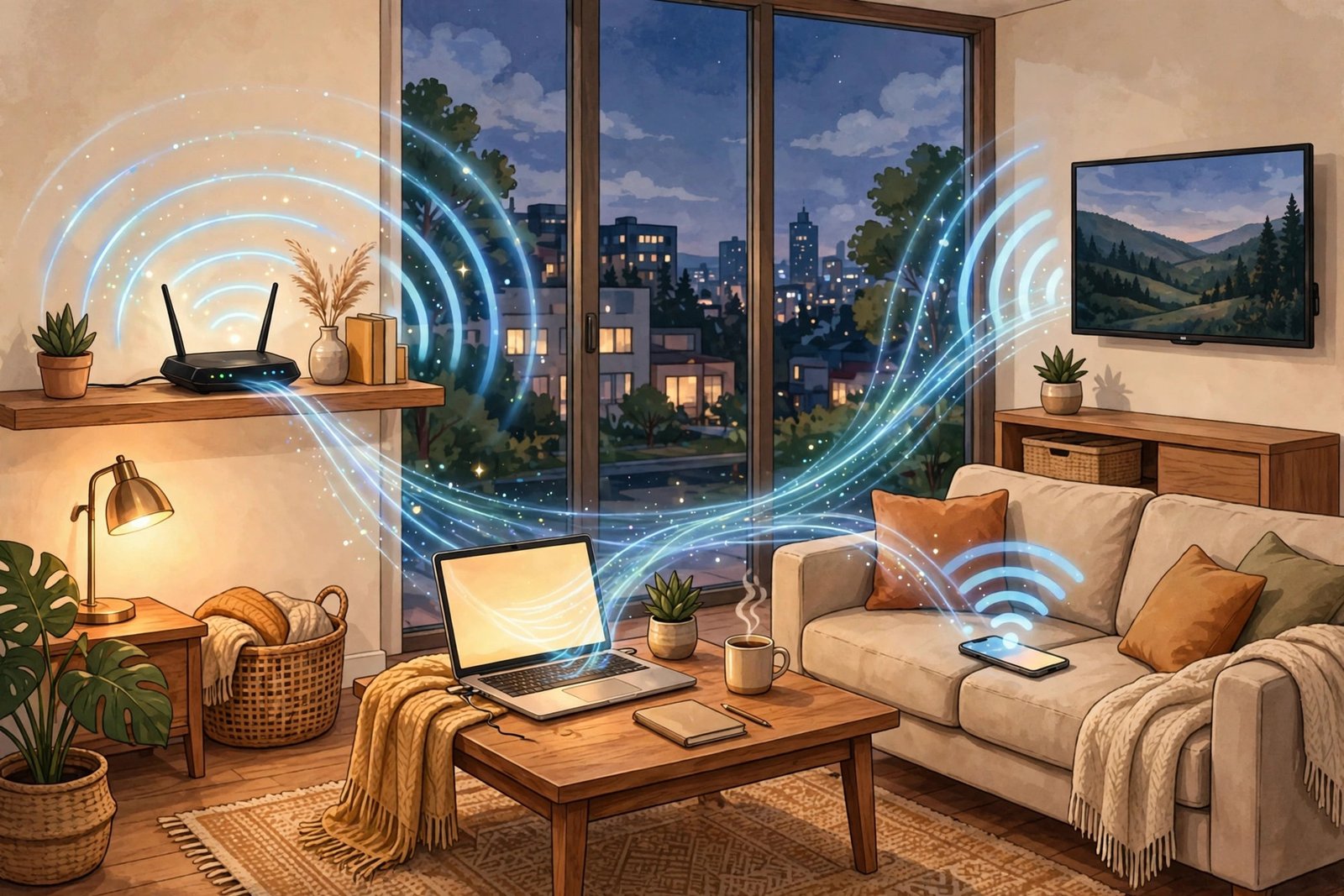
WiFi feels like magic. You walk into your house, your phone connects on its own, and suddenly you can stream a movie, join a video call, or scroll through photos — all without plugging anything in. But there is no magic involved. WiFi is just radio, used in a very clever way.
In this guide, you will learn exactly how WiFi works, in plain English: what travels through the air, what your router and modem actually do, why your signal gets weaker in some rooms, and what keeps your connection safe. No tech degree needed.
WiFi in One Sentence
WiFi is a wireless technology that lets your devices talk to your router using radio waves, and your router passes that conversation on to the internet through your modem.
That is the whole idea. Everything else is just detail — and the details are what make it work so well.
WiFi Is Radio — Just a Different Kind
When people hear “radio,” they usually think of music stations or a car stereo. WiFi uses the same basic thing — radio waves, a type of invisible electromagnetic wave — but at much higher frequencies, and carrying computer data instead of songs.
Your phone, laptop, and router all have tiny radios built in. When your phone wants to send something, its radio turns digital data (the 1s and 0s computers use) into radio waves. Your router’s radio picks those waves up and turns them back into data. The same thing happens in reverse when data comes back to you.
Nothing physical travels through the air. No tiny internet pellets fly from your router to your phone. The radios simply change a wave in controlled ways to carry information, and the receiver reads those changes back.
What Each Box in Your Home Actually Does
Most homes have two boxes that people mix up: the modem and the router. They do different jobs, even though they often sit in one combined unit these days.
The modem: your doorway to the internet
The modem connects your home to your internet provider. It takes the signal coming in from outside — through a fiber cable, a phone line, or a cable TV line — and turns it into digital data your home network can use. Think of it as the front door of your house: everything from the internet comes in through it, and everything you send out leaves through it.
The router: the traffic controller inside your home
The router takes that internet connection and shares it with all your devices. It gives each device its own local address when it connects, so it knows which reply goes to your phone and which goes to your laptop. It also creates your WiFi network — the network name you see on your phone — and sends and receives the radio signals that carry your data.
So the short version is: the modem brings the internet into your home, and the router spreads it around your home wirelessly. WiFi itself is only the wireless part — the link between your devices and your router. It is not the internet itself, which is why your phone can show full WiFi bars and still have no internet if your provider’s connection is down.
How a Web Page Gets to Your Phone, Step by Step
Here is what happens when you tap a link on your phone:
- Your phone finds the network. Your phone listens for your router’s network name and joins it, proving it knows the password. Modern networks use WPA2 or WPA3 security for this step, which scrambles the conversation so a neighbor cannot just listen in.
- Your phone gets an address. The router hands your phone a local address and tells it where to send requests. This happens automatically in a fraction of a second.
- Your phone sends the request by radio. The request — “show me this page” — travels as radio waves to your router.
- The router passes it to the modem. The router forwards the request through the modem to your internet provider, and from there across the internet to the website’s server.
- The answer comes back the same way. The server replies, the data travels back through your provider and modem to your router, and the router sends it wirelessly to your phone. Your page loads.
The whole round trip usually takes milliseconds. Your router repeats this for every device in your home, dozens of times a second — which is also why a struggling router shows up as buffering videos and frozen video calls.
The WiFi Bands: 2.4 GHz, 5 GHz, and 6 GHz
WiFi does not use one single frequency. It uses bands — slices of radio spectrum — and each band is a trade-off between range and speed.
| Band | Range | Speed | Best for |
|---|---|---|---|
| 2.4 GHz | Longer, passes through walls better | Slower, more crowded | Smart plugs, cameras, devices far from the router |
| 5 GHz | Shorter, fades faster through walls | Faster, less crowded | Streaming, gaming, video calls near the router |
| 6 GHz | Shortest range | Fastest, newest | Newer devices on WiFi 6E and WiFi 7 routers |
That trade-off is simple physics: lower frequencies travel farther and push through walls more easily, while higher frequencies can carry more data but fade sooner. Most modern routers hide both bands behind one network name and quietly move each device to the band that suits it best.
If you want the full comparison, read our guide to 2.4 GHz vs 5 GHz WiFi: which band should you use.
Why Your WiFi Gets Weaker in Some Rooms
Radio waves weaken with distance, and walls, floors, metal appliances, and even a fish tank get in the way. That is why the bedroom farthest from the router often feels slower than the living room next to it. Other networks nearby can also crowd the same channels, especially on the busy 2.4 GHz band.
Two things help more than anything else: moving the router to a central, open spot in your home, and adding coverage where the signal dies — for example with a mesh system or an extender. We compared the two options in Mesh WiFi vs WiFi Extender: which is better, and if your whole home feels slow, our step-by-step guide to fixing slow WiFi at home walks through the fixes in order.
Is WiFi Safe? WPA2, WPA3, and Your Password
WiFi itself is not automatically safe or unsafe — it depends on how your network is set up. The security comes from encryption: when your device joins a protected network, it runs a quick handshake with the router that proves both sides know the password, without sending the password itself through the air in plain text. After that, everything is scrambled so a nearby listener cannot casually read it.
The two standards you will see today are WPA2 and WPA3, with WPA3 being the newer and stronger one. The practical rules are simple: use a strong, unique WiFi password, keep your router’s software updated, and avoid doing banking or entering passwords on open public networks that have no password at all. If you are unsure about your current setup, our guide on how to change your WiFi password covers the steps.
A Fun Fact: WiFi Does Not Actually Stand for Anything
Most people assume WiFi is short for “wireless fidelity,” by analogy with hi-fi (high fidelity). It is not. WiFi is a brand name invented in 1999 by the branding firm Interbrand for the Wi-Fi Alliance, because the real technical name — IEEE 802.11b — was not exactly catchy. The alliance briefly used the tagline “The Standard for Wireless Fidelity,” which is where the myth came from, but the name itself was never an acronym. It just sounded friendly and familiar.
Under the hood, WiFi still runs on the IEEE 802.11 family of standards. Each new generation — WiFi 5, WiFi 6, WiFi 7 — is a newer version of that standard, bringing faster speeds and better handling of lots of devices at once.
WiFi vs Internet: The Difference, Once and for All
- WiFi is the wireless link between your devices and your router. It works inside your home.
- The internet is the global network your modem connects to through your provider. It is what actually holds the websites, videos, and apps.
- Your router sits between the two, passing traffic back and forth.
That is why you can have WiFi without internet (your devices connect to the router, but the provider link is down), and why a wired Ethernet cable can give you internet without WiFi at all.
Frequently Asked Questions
Does WiFi work without the internet?
Yes, partly. Your devices can still connect to your router and to each other — for example, to send a file to a printer or stream to a local device — but you cannot reach websites or apps until the internet connection is back.
How far does WiFi reach?
It depends on the band, the router, and your walls. As a rough rule, expect usable coverage across a typical home on 2.4 GHz, and a room or two less on 5 GHz. Thick walls and metal cut the range noticeably.
Is 5 GHz better than 2.4 GHz?
Neither is always better. 5 GHz is faster and less crowded, but it does not reach as far. 2.4 GHz reaches farther and handles walls better, but it is slower and more crowded. That is exactly why most routers use both.
Can too many devices slow down WiFi?
Yes. Devices on the same network take turns using the radio channel, so a house full of streaming TVs, phones, cameras, and smart gadgets can crowd the air. Newer WiFi standards handle many devices better, but an old or overloaded router will still struggle.
The Bottom Line
WiFi works by turning your data into radio waves, sending them between your devices and your router, and letting your router and modem carry that data to and from the internet. The modem brings the internet in, the router shares it around your home, and the radio bands decide how far and how fast it all goes. Once you see those three jobs clearly, every WiFi problem — weak signal, slow speeds, dead zones — becomes much easier to understand and fix.



Luka Doncic Scores 52 Points as Lakers Beat Jazz 132-123

How to Fix WiFi That Keeps Disconnecting: 12 Simple Fixes

Polar Vortex Disruption: What the Early November Forecast Really Means

Empower Your SEO and Design with Seotoolsgroupbuy.us’ Designer Plan

Twstalker Twitter Web Viewer: Guide to Anonymous Twitter Browsing
